SSL Certificate
SSL (Secure Sockets Layer) certificates are digital documents developed to provide a higher level of security when transmitting messages or documents via the Internet. The certificates use public and private encrypted keys to verify that the sender of a message really is the entity it claims to be. Internet browsers and many Web sites use the SSL protocol to obtain confidential user information.
Certificates are issued by certifying authorities (CAs), and contain specific information about the issuing authority, so that those receiving certificates can be confident that they are from a trusted source.
When used for email authentication, certificates are associated with digitally signed messages. Through verification of the public and private keys in the certificate, the receiver can be confident that the sender is not using a fraudulent identity, and the sender can be sure that only the intended receiver actually accesses the message. In addition, the receiver knows that the message has not been modified since it was sent.
To obtain a certificate, you must first create a certificate request, which is sent (with appropriate identifying information) to a certifying authority. Once they have verified that you are who you say you are, they issue you a certificate containing the public key information that matches the private key (which only you know).
Winmail Server uses SSL communication protocols to protect all communications between Winmail Server and client systems. Winmail Server provides a public key that can be used with the client's private key, as authorized and verified by the third party CA, to ensure secure communication. When another server attempts to connect with the Winmail Server, the SSL certificate will verify that the sender is an Internet address to be trusted, and will allow you to either proceed with the connection or terminate it.
To manage the use of certificates, select SSL Certificate from the System Setup menu. The following screen will appear.

You can perform any of the following functions with regard to SSL Certificates:
1. New
Create a Certificate Request
To create a request for a certificate, click the New button.
Select New request... and the following dialog box will appear
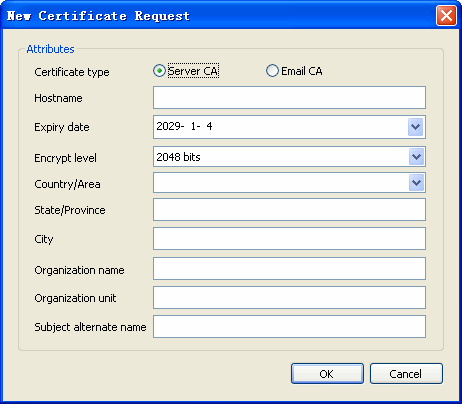
Note: The host name in the certificate must match the actual server name and host name in client software settings.
.Enter the requested information. Choose the country from the pull-down menu.
.Click OK when finished.
.The certificate request will appear in the certificate listing, as a request.
Create a Self-Issued Certificate
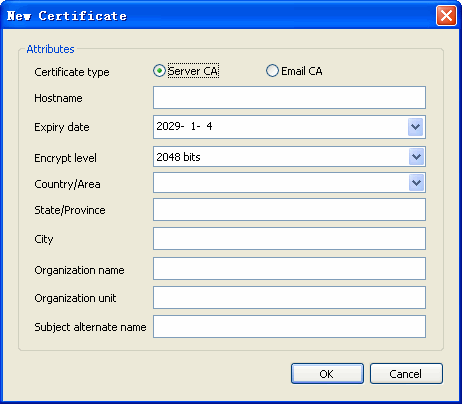
Follow the same procedure used for creating a certificate request, but select "New certificate..." instead of "New request..."
The dialog box will require identical information.
2. View
Click the View button to view the information about a request or a self-issued certificate. Choose from one of the following options:
View Details to review the parameters and information provided for the certificate request.
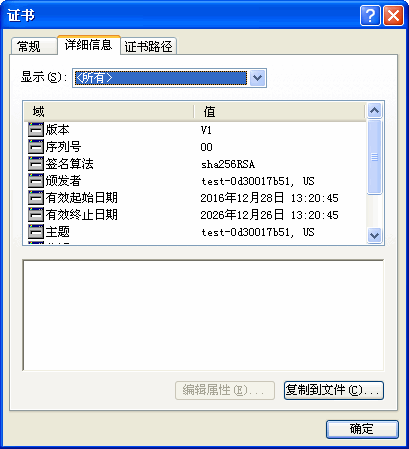
.View Request to display the encrypted public key sent as part of the certificate request.
.View Certificate to display the encrypted public key being used as part of the self-issued certificate.
3. Import
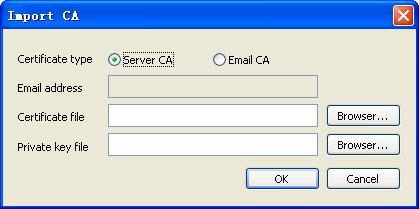
Select the Import button to import one of the following two types of certificates:
.A new certificate and its corresponding private keys, to be imported from a local machine into the certificate management database
.A certificate signed by a third party CA
Certificates are stored in subdirectory CERTS of the installation directory. The following file extensions are used to identify the different types of files:
.files with .crt extensions are certificates
.files with .csr extensions are certificate requests
.files with .key extensions are private keys
4. Export
You may want to export the certificate being used by the Winmail server to each client system. After the client imports the certificate to their local machine, the certificate will allow communication with the Winmail Server to be considered as trusted communication, with no need for verification and warnings.
Select the Export button to export one of the following three types of files:
.An existing certificate (.crt file)
.A certificate request (.csr file)
.A private key (.key file)
5. Remove
To remove a certificate or certificate request, and its corresponding private key, select the item in the certificate list and click the Remove button.
Note: The deletion will occur instantly as soon as the Remove button is selected; no confirmation message appears first.
6. Activate
To specify a certificate for use in SSL communication with the Winmail Server, select the certificate and click the Activate button.
The status of the selected certificate will change from Inactive to Active, and the previously active certificate will change to Inactive.
7. Refresh
Click the Refresh button to update the database and refresh the screen with the current list of certificates and certificate requests on the Winmail Server.