POP3 Download
The POP3 download option of Winmail Server retrieves email from specified accounts on other mail servers and distributes them according to the mail gateway settings specified here. Select Mail Gateway and then double-click POP3 Download to display the following screen.
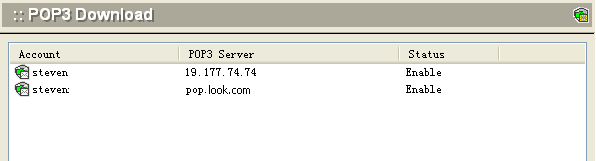
To add a POP3 account, click the Add button at the bottom of the screen. The following dialog box will appear.
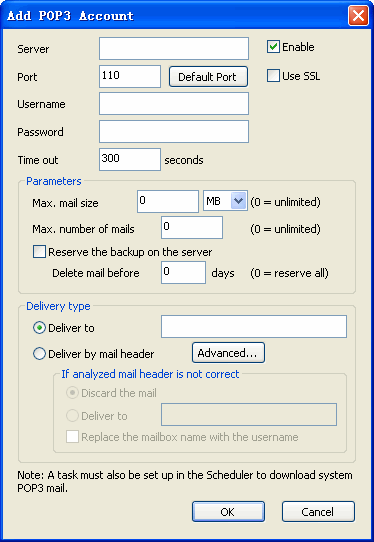
Use the following table as a reference for completing this dialog box.
| Server | POP3 Server IP address or domain name for receiving mail. |
| Port | POP3 Server port number for receiving mail. .Click the Default Port button to use the default port number(110). |
| Enable | Check this box to enable receiving mail on this POP3 account. |
| Use SSL | Check this box to use SSL security connection. |
| User | POP3 mailbox account |
| Password | POP3 mailbox password. |
| Time Out | Number of seconds the server will wait for delivery before timing out. |
| Max mail size | Maximum size of email allowed. Enter 0 if there are no size restrictions. |
| Max mail number | Maximum number of email messages allowed to be downloaded at the same time. Enter 0 if there are no restrictions. |
| Reserve the backup on the server | Check this box to keep a backup copy of email on the server. |
| Deliver to | Check this option if you want all email to go to one specific mailbox, and enter the mailbox address to be used. |
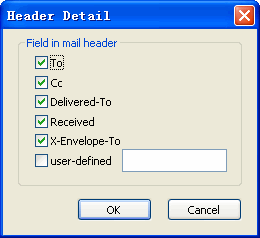
| Deliver by mail header | Check this option to distribute mail directly to the recipient shown in the mail header. The following three options determine how to handle email with an incorrect mail header. .Discard the mail .Deliver to (specify a default mailbox for all incorrectly addressed email) .Replace mailbox name with user name |
| Discard the mail | Select this radio button if a message with an incorrect mail header should be discarded. |
| Deliver to | Select this radio button if a message with an incorrect mail header should be redirected to another mailbox. |
| Replace the mailbox name with the username | Check this box to replace the name part of an email address (before the '@' ) with the user name. For example, if the mailbox is default@winmail.cn and the user name is 'steven', if this box is checked, the system will act as if the recipient's email address is steven@winmail.cn. This way, more than one person can share one email account. |
Note: To successfully use the POP3 download, a task must be set up in the Scheduler that is specifically assigned to retrieving POP3 mail. See System Setup -> Scheduler.
.Click OK to accept the POP3 server settings.
.To modify an existing setting, select the POP3 server from the POP3 Download screen and click the Modify button.
.To delete an existing POP3 setting, select the POP3 server from the POP3 Download screen and click the Delete button.
.Use the Refresh button to update the database and refresh the screen.