System Backup
Winmail Server provides options to back up and restore either email files or system configuration and data files independently. You can also set up real time backup of all incoming and outgoing email. To set up the backup capabilities, select System Backup from the System Setup menu. The following screen will appear, showing two tabs for the different backup options: Archiving and Backup
Archiving
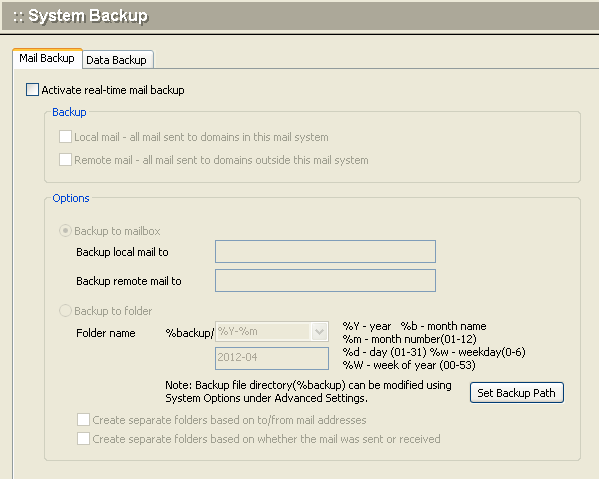
Use the following table for reference while completing this screen.
| Active archiving | Check this box to enable email archiving in real time. |
| Backup | Check the appropriate box to back up either, or both: 1)Local mails - local sender, local recipient 2)Incoming mails - remote sender, local recipient 3)Outgoing mails - local sender, remote recipient 4)Relayed mails - remote sender, remote recipient |
| Options | Select a radio button to backup email to either: 1)a mailbox address (specify one each for local and remote email backups) 2)a file folder |
Backup
Select the second tab under System Backup to back up and restore system files. The following screen will appear.
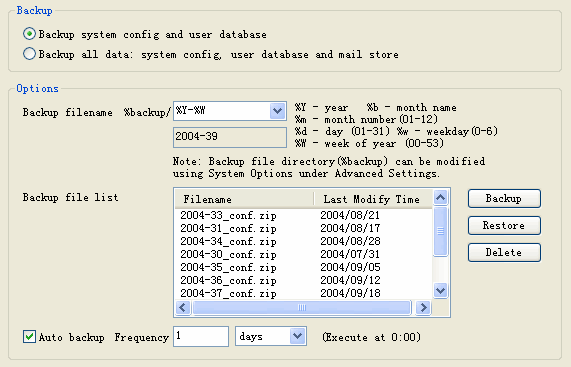
Use the following table for reference while completing this screen.
| Backup | Select the appropriate radio button to back up: 1) System configuration and data files only 2) System configuration, data files, and stored email (this function will take a longer time and may affect system performance) |
| Backup file name | Specify in the text box a folder name that includes a date identifier. Select a format from the pull-down menu of date placeholders. The file name can be created from the following values, using the selected format: 1) %Y = year 2) %m = month number (01-12) 3) %b = month (name) 4) %d = day of the month (01-31) 5) %w = day of the week (number, 0-6) 6) %W = week of the year (00-53) |
| Backup file list | List of all existing backup archives. |
| Backup/Restore/Delete Operations | Three buttons show the available operations: 1) Backup - perform a backup on the specified files in real time 2) Restore - restore the selected backup archive 3) Delete - delete the selected backup archive |
| Auto backup frequency | Check this box to run automatic backups on a regular basis.Specify the frequency using the text box and pull-down menu. |
| Auto backup | Automatic backup according to the selected frequency. |
Note: When performing real-time backup or restore, make sure that SMTP, POP3, IMAP and HTTP services have all been stopped.