Groups
Winmail Server allows the administrator to set up and manage mail groups. Mail groups actually have a separate email address and all group members will receive mail sent to that address. To add, modify, or delete a user group, select Users and Groups from the main menu, then double-click Groups from the Users and Groups screen. The following screen will appear.
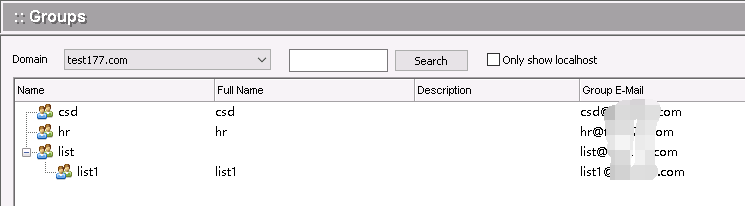
Add Group
Click the Add button to add a new user group. The following dialog box will appear.
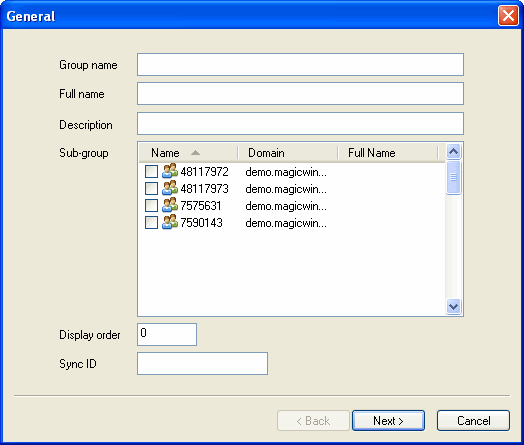
Enter the name of the group, and a user-defined description.
Click Next to proceed to the Group Members dialog box.
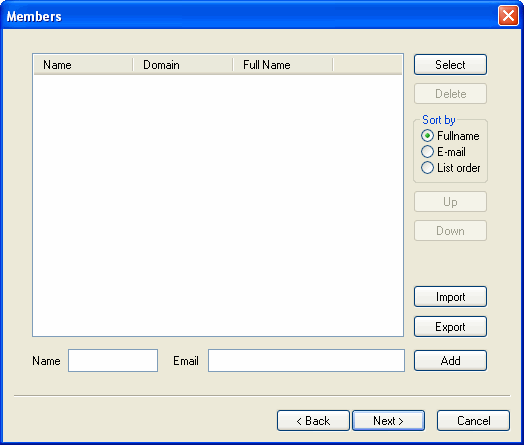
To add users (members) to this group, click the Select button.Select the user to be added, and click OK. The name and domain will appear in the Members dialog box.
Importing a File of Members
To import a file containing member records for the current group, click the Import button on the Members dialog box.
- Click the Browse button to select the file to be imported.
- Choose the character used in this file as a comment character.
- Choose the character used in this file as a field separator.
- Click the Next button to bring up the Field Map.
- Select the fields to be included in the imported file by checking their boxes.
- If a mailbox name is missing a domain name, enter the default domain name to be used.
- Select Random if you want the system to randomly generate a password, when one is missing. Select Fix if you want the system to use one password for all the records, and enter the password in the text box.
NOTE: The import function will not overwrite existing records. Only records with new information will be imported.
Exporting a File of Members
To export a file containing group members, click the Export button on the Members dialog box.
- With the cursor in the Export file text box, click the Browse button to create a default export file name. The default file for the currently shown domain will be selected.
- Browse to the location to which you want the file exported, open and save.
- The path will now appear in the Export file text box. Click the Next button to bring up the Field Map.
- Select the fields to be included in the exported file by checking their boxes.
- If you want the first record in the exported file to be the field names, check the box at the bottom of the dialog box.
- Click Export to export the selected file to the selected location. A confirmation message should appear.
NOTE: You can only export each file one time.
Adding External Members
To add a member that is not in the current domain, enter the full user mailbox address in the "External mailbox" text box. Click Add to add the name to the member list.
Repeat the process of selecting users until the group is populated with the correct user members. When finished, click Next to proceed to Group Permissions.
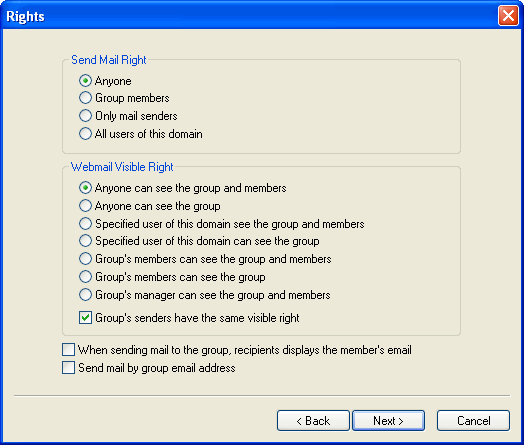
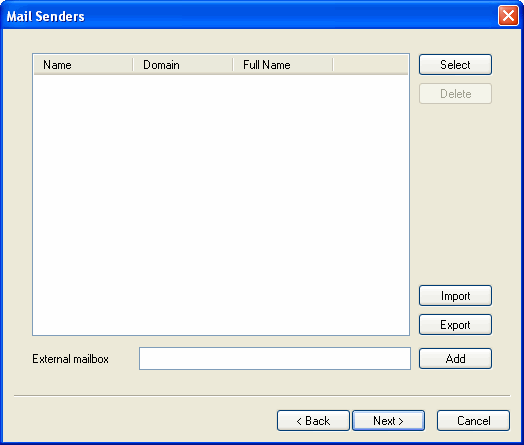
Select users who have permissions to send mails of the group .
Group Permissions
Each group can have different global permissions applied to its members.
Click the appropriate radio button to specify whether you want:
- All group members to be able to receive mail from anyone
- All members of this group to be able to send email
- Only specific members of this group to be able to send email
Click Next to proceed to the Send Mail Member dialog box.
Use this dialog box to specify members who have authorization to send email from the group. Use the Select button and the pop-up user list, as when adding users to a group, to select user names for this list.
Click Next to proceed to the Group Manager dialog box.
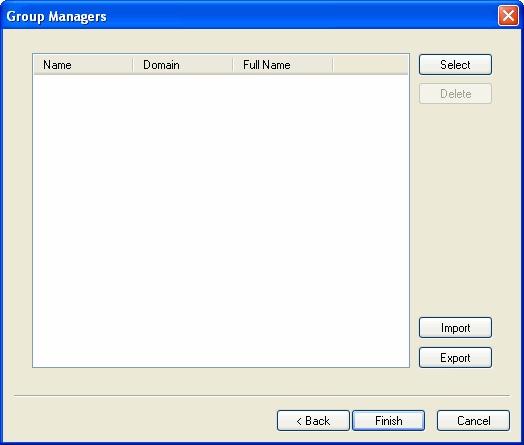
Choose the group manager who manage the group by webmail.
Modify Groups
Modify a group, select it from the list of groups shown, and click the Modify button. The following multi-tabbed dialog box will appear, set to General Information by default.
Change General Information
In the General tab, you can change the description of the selected group, but not its name.
Change Members
You can add, delete, import, and export members for this group using the Members tab. The dialog box functions in the same way as when adding members. See the preceding Add Members section.
Change Permissions
Use the Permissions tab to change the permissions granted to members of this group. Click the appropriate radio button to specify whether you want:
- All group members to be able to receive mail from anyone
- All members of this group to be able to send email
- Only specific members of this group to be able to send email
Change Authorization to Send Mail
- Use the Send Mail tab to change the members who have authorization to send email from the group.
- Use the Select button and the pop-up user list, as when adding users to a group, to select user names for this list.
Change Group Manager
- Use the Group Manager tab to add or delete a group manager for this group.
- Use the Select button and the pop-up user list, as when adding users to a group, to select user names for this list.
Delete Groups
To delete a User Group, select it from the list of User Groups and click the Delete button. A confirmation message will appear. Click Yes to proceed with deleting the User Group.