System Services
Each of the various functions for sending and receiving email is managed through a specific service, running on its own system port. The Services option provides a list of the available services and their running status, IP and port information. A super administrator can choose to start, stop, or modify the setup of any of these services.
Select the Services option under System Setup. The following screen will appear.
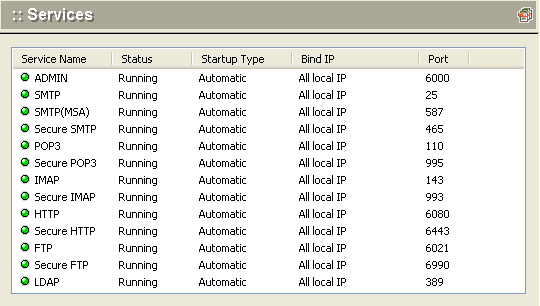
| ADMIN | The Admin service allows management of the mail server through the administration tool. This service cannot be stopped. Winmail Server requires this service to be running or a software failure will occur. Admin service is under SSL encryption. |
| SMTP | SMTP (Simple Mail Transfer Protocol) service is for sending mail to or receiving mail from other mail servers. |
| Secure SMTP | Secure SMTP service is under SSL encryption, preventing network listening. |
| POP3 | POP3 (Post Office Protocol) service allows the local machine to retrieve email from other mailboxes or from servers with client software. |
| Secure POP3 | Secure POP3 service is under SSL encryption, preventing network listening. |
| IMAP | IMAP (Internet Message Access Protocol) allows you to process email on the server via the Internet. |
| Secure IMAP | Secure IMAP service is under SSL encryption, preventing network listening. |
| HTTP | HTTP (Hypertext Transfer Protocol) service is used for Webmail operation. |
| Secure HTTP | SSL secured connections. HTTP with secured access |
| FTP | FTP (File Transfer Protocol) service provides network storage. |
| Secure FTP | Secure FTP service is under SSL encryption, preventing network listening. |
| LDAP | LDAP (Lightweight Directory Access Protocol) service allows a distributed directory-type database server to store public addresses, which can be searched by users. |
Start Services
.To start a service that is not running, select it from the list of Services and click the Start button.
.If you cannot start the service in this way, check the System Log (from the main screen choose System Logs->System). Usually a start failure is caused by ports in use.
.Please refer to the FAQ Why can't I always start SMTP/POP3/ADMIN/HTTP/IMAP/LDAP services after installation?
Stop Services
To stop a running service, select it from the list of services and click the Stop button.
Note: Stopping the ADMIN service is not allowed.
Service Setup
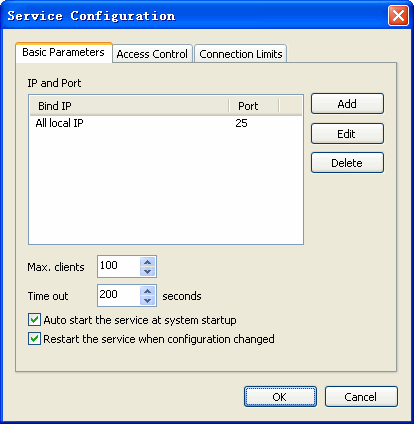
To set up or modify the parameters for a selected service, highlight the service and double-click, or highlight the service and click the Setup button. One of the following Service Parameter Setup screens will appear.
Basic Parameters
The Basic Parameters tab of the Service Parameter Setup screen allows the administrator to specify the IP address and port to be used for communication, along with other key information. Default settings are automatically entered during the installation process, and normally do not need to be changed.
To change one of the basic parameters for a service, type in the new value or check/uncheck the appropriate box, and click the OK button.
| Bind IP address | Server will receive data only from the specified IP address. To allow receipt of data from all IP addresses, leave this setting at 0.0.0.0. |
| Port | The port number used by this service program for network listening. |
| Max clients | Maximum number of systems allowed access to this service at the same time. |
| Time out | Number of seconds the network connection will wait before timing out. |
| Auto start service when the system startup | Check this box to automatically restart the service whenever the system is restarted. |
| Restart the service after setup | Check this box to manually restart the service. Checking this box and clicking the OK button will restart the service immediately. |
Access Control
The Access Control tab of the Service Parameter Setup screen allows the administrator to restrict access to the server by certain IP addresses.
Note: The access control options for each server are mutually exclusive. That is, you can choose only one of the options available, and list IP addresses to meet only one set of criteria.
.To add a new IP address to the list, type it into the text box and click the Add button.
.To remove an IP address from the list, select it from the list and click the Delete button.
.Click the OK button when you are finished with all Access Control setup for this service.
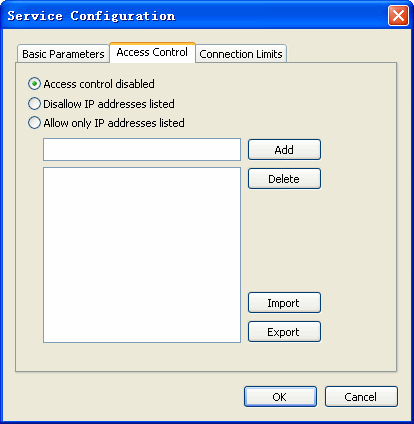
| Access IP address uncontrolled | Any IP address is allowed to access the service. |
| Disallow below IP address | Any IP address listed in the following box is not allowed to access the service. |
| Allow below IP address | Only the IP addresses listed in the following box are allowed to access the service. |
Connection Limits
For all of the ADMIN, SMTP, POP3, and IMAP services, a third parameter setup tab is available to set the frequency. Frequency refers to the number of concurrent connections that can be handled by each IP address.
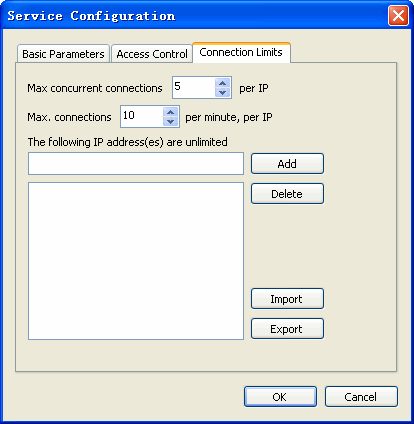
| Max. concurrent connections | Maximum number of concurrent connections allowed through this port. |
| Max. connections/minute/IP | Maximum number of connections per minute, per IP address. |
| Unlimited access for the listed IP addresses | Those IP addresses listed will always be allowed access through this port. |
.To add an IP address for unlimited access, enter the IP address in the text box and click the Add button.
.To delete an IP address from the unlimited access list, select the address and click the Delete button.
Notes:
1.Do not change SMTP service port. Changing the port number will cause failure when other mail systems are sending mail to server.
2.Present HTTP service does not use the standard 80 port, but instead uses the 6080 port. Be sure to specify the HTTP port when using Webmail. If you need to access a local machine, enter http://localhost:6080/ or http://yourserverip:6080/ in the browser address box. If there is no other HTTP service using port 80 on the server, you can change the HTTP service port for Webmail to 80 and directly connect to http://localhost or http://yourserverip to access Webmail.
3.If one network interface card on the server has two IP addresses (internal and external), set up local IP 0.0.0.0 as the SMTP/POP3/IMAP bind IP address.