Bad/Good List
Mail From Filter
The Mail From Filter under SMTP Setup allows the administrator to enter domains to be restricted. If you prefer to filter by IP address, use the Access Control tab under Service Parameter Setup (Services option).
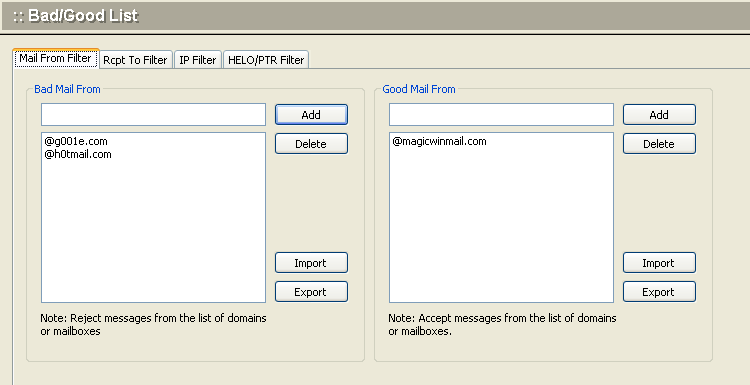
Note: To determine the actual addresses to be listed in each box, analyze addresses from the System Log/SMTP. Do not automatically include addresses in mail headers, because the sender's address in the header may differ from the actual origin of the message.
| Bad Mail From | .To create a list of domains from which you do not want Winmail Server to accept requests to send mail, enter the domain name in the text box and click the Add button. .To remove a domain from this list, select it and click the Delete button. .You can also filter by IP address, using the Access Control sub-option under the SMTP and Secure SMTP Service setup options. |
| Good Mail From | .To create a list of domains from which you know Winmail Server can accept requests to send mail, enter the domain name in the text box and click the Add button. .To remove a domain from this list, select it and click the Delete button. .You can also specify an IP address as a "trusted" sender using the Trusted Host sub-option. |
.To apply your changes, click the Apply button.
.To cancel current settings and return the screen to its state after the last "Apply" operation, click the Reset button.
Rcpt To Filter
To reduce the amount of spam going through the server, the administrator can filter invalid user addresses on the local system from SMTP delivery. The Rcpt To Filter screen looks and functions in the same way as the Mail From Filter screen.
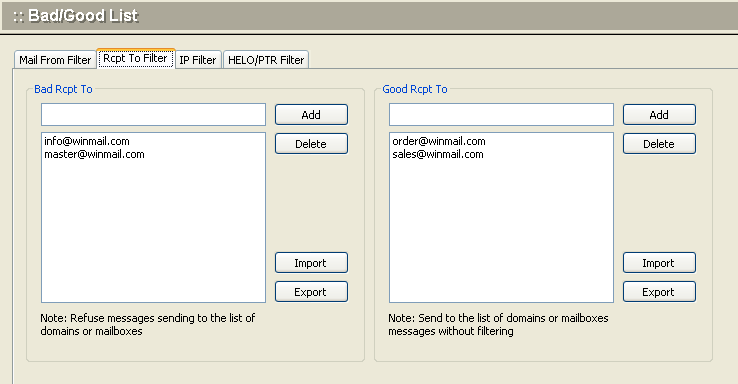
| Bad Rcpt To | .To create a list of domains for which you want Winmail Server to block delivery requests, enter the domain name in the text box and click the Add button. .To remove a domain from this list, select it and click the Delete button. |
| Good Rcpt To | .To create a list of domains for which you want Winmail Server to accept delivery requests, enter the domain name in the text box and click the Add button. .To remove a domain from this list, select it and click the Delete button. |
.To apply your changes, click the Apply button.
.To cancel current settings and return the screen to its state after the last "Apply" operation, click the Reset button.
IP Filter
Bad Host IP: SMTP rejected occur when receiving message from the IP address(s) listed above.
Good Host IP: SMTP filter may not occur when receiving message from the IP address(s) listed above.
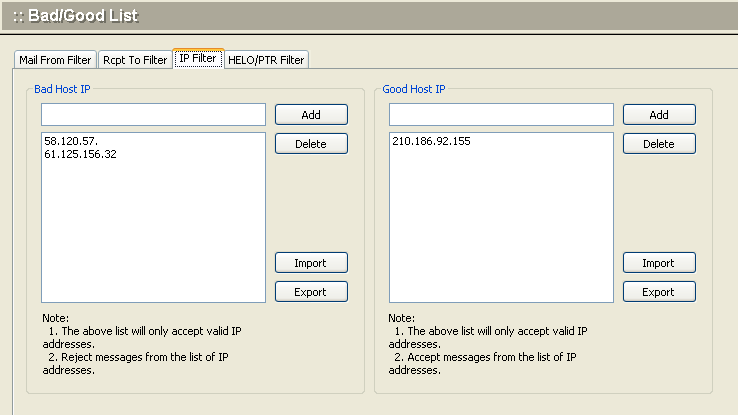
.To add an IP address to the list of trusted IP addresses, enter the IP address in the text box and click the Add button.
.To remove an IP address from this list, select the IP address and click the Delete button.
.To apply your changes, click the Apply button.
.To cancel current settings and return the screen to its state after the last "Apply" operation, click the Reset button.
HELO/PTR Filter
Generally, the HELO/EHLO hostname is your host name and will be converted into the host IP of mail server. If you have checked the box under the SMTP Filter tab that specifies you want to reject HELO/EHLO requests, the SMTP service will filter out and reject messages from the hostnames specified on this HELO/EHLO Filter tab.
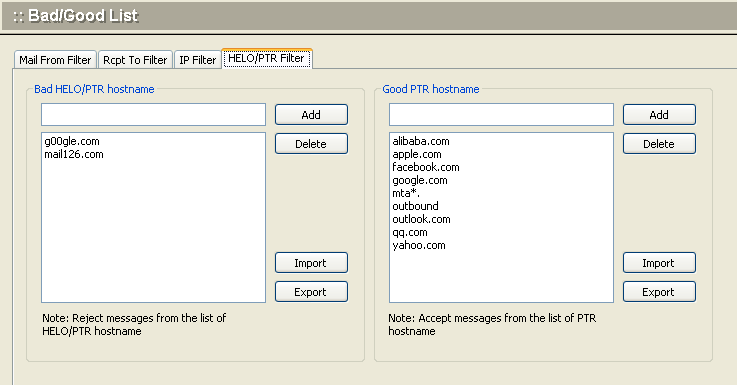
.To add a domain to the list of HELO/EHLO domains to be filtered out, enter the domain name and click the Add button. Requests for mail delivery from these domains will not be accepted.
.To remove a domain from this list, select the domain name and click the Delete button.
.To apply your changes, click the Apply button.
.To cancel current settings and return the screen to its state after the last "Apply" operation, click the Reset button.