Anti-Virus Setup
Winmail Server software can integrate with anti-virus software already installed in the operating system to scan, isolate, and/or eliminate infected email, both incoming and outgoing.
Select Anti Virus Setup from the System Setup menu. The Anti Virus Setup screen contains three tabs, allowing the administrator to specify the type of anti virus software to use, what kinds of email attachments to include, and what kind of notification message to send.
Anti-Virus Engine
The first tab, Anti-Virus Engine, appears by default, as shown.
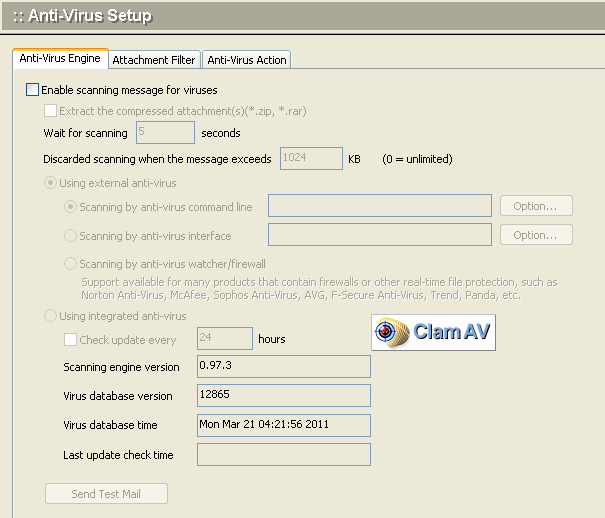
Use the following table for reference while completing this screen.
| Enable scanning email for viruses | Check this box to enable a command line program, built-in API, or anti-virus firewall to operate with Winmail Server. Then select from the three options the type of anti-virus product being used on this operating system: command line executable program API firewall or other real-time program |
| Use anti-virus command line program | Choose this radio button if you are using a command-line executable program to run anti-virus software. |
| Anti-virus product name | Enter the name of the anti-virus software, or choose from the pull-down menu of Available Anti-Virus Engine software programs. |
| Execute program path | Enter the path to the executable (.exe) program for your anti-virus software. |
| Command lines | Fill in the parameters for running the executable (.exe) program. Note that two of the default parameters must be replaced by actual values from your system. |
| Scanning confirmation message | Displays the message that will appear in the anti-virus scanning report: If virus is found in file If no virus is found in file |
| Use anti-virus API | Choose this radio button if you are using an anti-virus API. |
| Anti-virus product name | Choose the anti-virus API from the pull-down menu of Available Anti-Virus Engine API software. |
| Use anti-virus watcher | Choose this radio button if you are using an anti-virus firewall or other real-time virus watcher. |
| Send testing mail | Send a harmless virus sample, based on international standards, to test your anti-virus product. If settings are OK, postmaster will receive a warning email. You can download this sample at http://www.eicar.org/anti_virus_test_file.htm |
Notes:
.Before doing a virus scan, be sure to shut down anti-virus firewall or real-time monitoring service.
.Do not install multiple anti-virus products, as this may cause unexpected results.
.Configure virus software to automatically clean infected files if you are not using notification when viruses are found.
Attachment Filter
To filter email attachments, as well as email messages themselves, select the Attachment Filter tab. The following screen will appear.
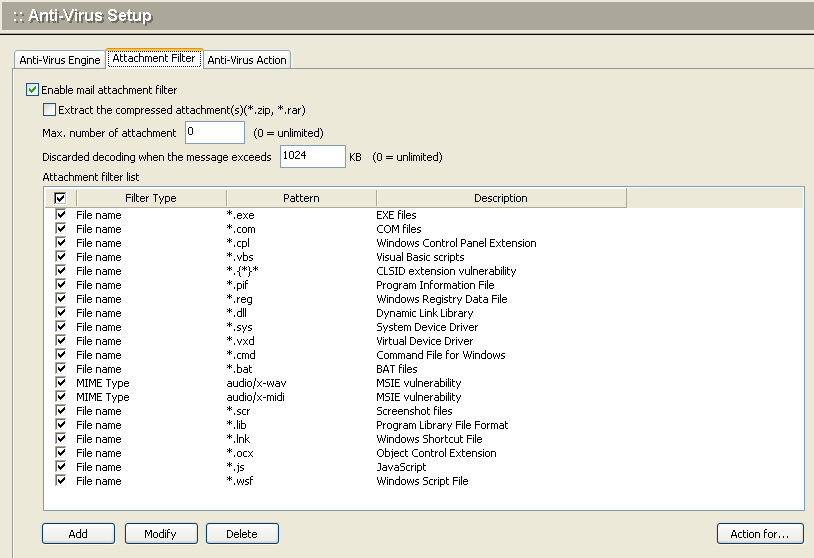
.Check the box for "Enable mail attachment filter" to turn on the attachment filtering capability.
.Check the box for each type of attachment that you want to include in anti-virus scanning.
#### Adding Attachment Filters
.To add a new attachment filter type, click the Add button at the bottom of the screen. The following dialog box will appear.
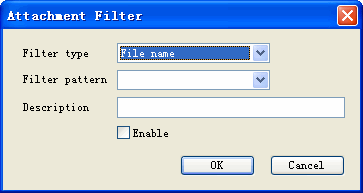
Enter information from the pull-down menus to specify the attachment filter to be added.
.Check the Enable box to allow this attachment filter to operate.
.Click the OK button to add this filter to the list.
#### Modifying Attachment Filters
.To modify an attachment filter, select the attachment type from the list and click the Modify button.
.The dialog box for adding attachment filters will appear, with the information for the selected filter filled in.
.Change the information desired, and click OK.
.The modified information will appear in the main list of attachment filters.
#### Deleting Attachment Filters
To delete an attachment filter, select the attachment type from the list and click the Delete button. A confirmation message will appear. Click Yes to proceed with deleting this attachment type from the list of attachment filters.
Anti-Virus Action
Select the third tab, Anti-Virus Action, to specify how to handle anti-virus messages. The following screen will appear.
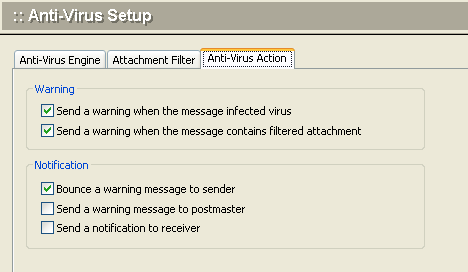
Check the box for the type of notification you would like to use, when a virus is detected.
| Bounce warning message to sender | Send a warning message back to the sender, when an email message or attachment contains a virus. |
| Send warning message to postmaster | Send a warning message to the system bounce mailbox when an email message or attachment contains a virus. |
| Send notification to receiver | Send a notification to the recipient, when an email message or attachment contains a virus. |
Note: If you choose to send notification to the receiver, performance may be affected in cases of multiple receivers.