SMTP Setup
Basic Parameters
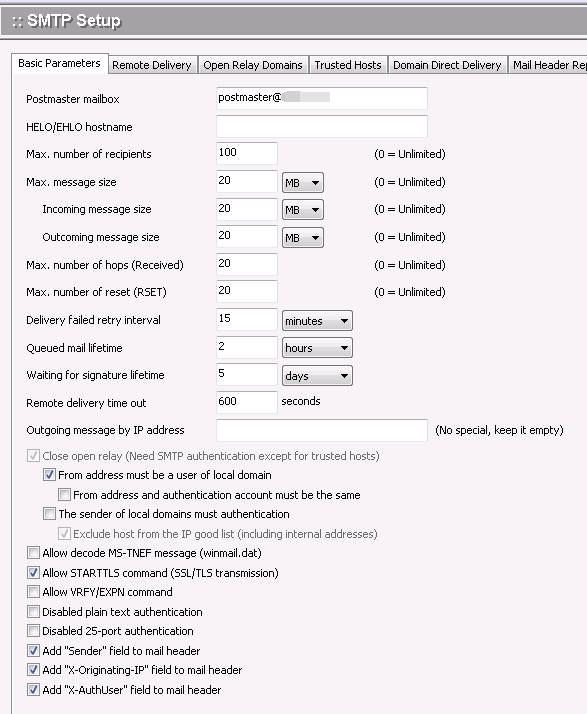
The Basic Parameters tab allows the administrator to determine:
.where bounced email will be sent
.restrictions on number of receivers for a given email, message size, and number of hops
.how long to wait when messages cannot be delivered or require signature
.what to do with certain kinds of exceptions
.whether to use SSL security for your communications
Use the following table for reference while completing the Basic Parameters screen.
| Postmaster mailbox | The email address to which all email that cannot be delivered will be sent, or to which failure information will be sent. You may also know the status of such mail in the received mail box. |
| HELO/EHLO host name | HELO/EHLO host name used during SMTP command communication. If this item is blank, the primary domain name will be used. HELO refers to the stage of the SMTP protocol in which SMTP servers introduce themselves to each other. EHLO is an expanded version of HELO. For more information, see http://www.faqs.org/rfcs/rfc821.html |
| Max. number of recipients | Maximum number of recipients allowed for each email. This helps guard against outgoing spam. |
| Max. message size | Maximum email message size, in bytes. |
| Incoming message size | Maximum email incoming message size, in bytes. Incoming message means that receiveing from other mail server |
| Outcoming message size | Maximum email outcoming message size, in bytes. Outgoing message means sending to other mail servers |
| Max. number of hops(Received) | Maximum number of SMTP servers allowed to pass through email server |
| Max. number of reset (RSET) | Maximum number of RESET commond allowed for each email. This helps guard against outgoing spam. |
| Delivery retry interval | Amount of time to wait before a failed email delivery will be retried. |
| Mail's life time in queue | Amount of time that an email can remain in the delivery queue. If it cannot be delivered within this time, no further attempts will be made. |
| Close open relay | Check this box to ensure that only an authenticated user can send mail to a relay server using this SMTP service. |
| From address must be a user of local domain | When an authenticated user sends an email, the sender's address must be the email address in the system. |
| From address and authentication account must be the same | Check this box to require that the sender's email address and authentication account match. |
| The sender of local domains must authentication | Check this box to require that the sender's in local domain must authenticate |
| Convert MS-TNEF message into MIME message | MS-TNEF is a special format for Microsoft Outlook that is not recognized by most non-Outlook client software. Check this box to activate automatic conversion of MS-TNEF messages into MIME messages. |
| Allow starting SSL/TLS communication | Check this box to enable SSL security with Winmail Server communications. |
| Allow VRFY/EXPN command | Check this box to enable VRFY/EXPN command with Winmail Server communications. |
.To apply your changes, click the Apply button.
.To cancel current settings and return the screen to its state after the last "Apply" operation, click the Reset button.
Remote Delivery
The Remote Delivery option of SMTP Setup allows you to establish the parameters for delivering mail to another server.
Note: It is not usually necessary to activate this function for Broadband Internet users. Dial-up users can set a relay server as their local host, which will speed up delivery speed and reduce errors.
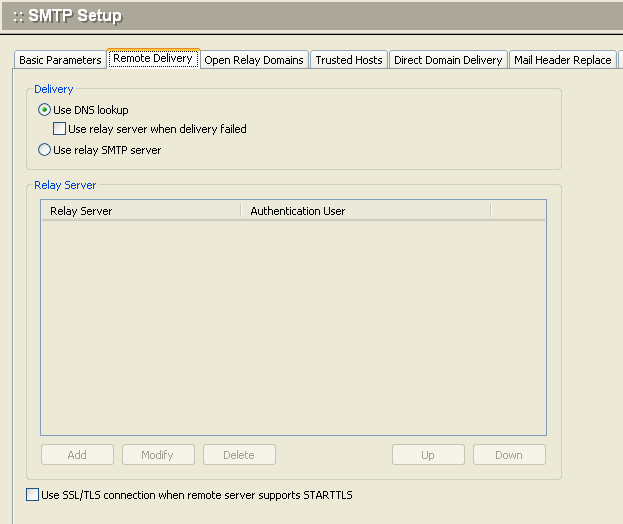
Use the following table for reference while completing this screen.
| Look up DNS MX records. | Check this box to have the SMTP service check for valid recipient addresses using DNS lookup. |
| Use SMTP relay server when delivery fails | If DNS lookup has been checked, but delivery fails, check this box to use the SMTP relay server to attempt delivery. |
| Use SMTP relay server | Check this box to always use the SMTP relay server for delivery. |
| Relay server address | If you are using an SMTP relay server, enter its IP address. |
| Relay server port | If you are using an SMTP relay server, enter its port number. |
| Use SSL | Check this box to use SSL security connection. |
| Retry attempts after failure | Enter the number of times you want the system to attempt delivery through the relay server, if the first attempt fails. |
| Retry server require authentication | Check this box to require authentication before attempting a delivery retry. |
| Address as mail from | The address as mail from when attempting a delivery retry. |
| User/Password | If you require user authentication before retrying mail delivery through a relay server, enter the user name and password here. |
| Use SSL/TLS connection when remote server is available | Check this box to ensure that SSL security will be used when accessing the remote server. |
.To apply your changes, click the Apply button.
.To cancel current settings and return the screen to its state after the last "Apply" operation, click the Reset button.
If relay server needs authentication, you must select Relay server requires authentication option and enter correct user name and password.
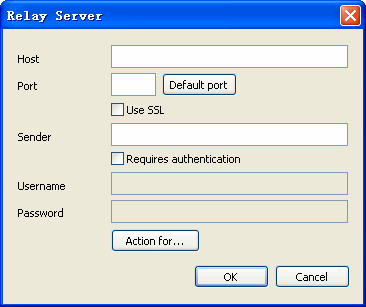
Usually, it is not necessary to activate this function for xDSL users. Dial-up user can set relay server for improving on delivery and reduce errors.
Open Relay Domain
The Open Relay Domain option under SMTP Setup allows the administrator to enter domains known to be reliable. After activating SMTP authentication, mail can be sent to any of these listed domains without authentication.
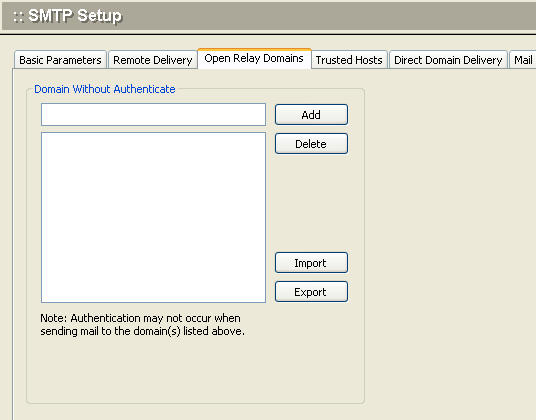
.To add a domain to the list of trusted relay domains, enter the domain name and click the Add button.
.To remove a domain from this list, select the domain name and click the Delete button.
.To apply your changes, click the Apply button.
.To cancel current settings and return the screen to its state after the last "Apply" operation, click the Reset button.
Trusted Host
Host Without Authenicate: Authentication may not occur when receiving message from the IP address(s) listed above.
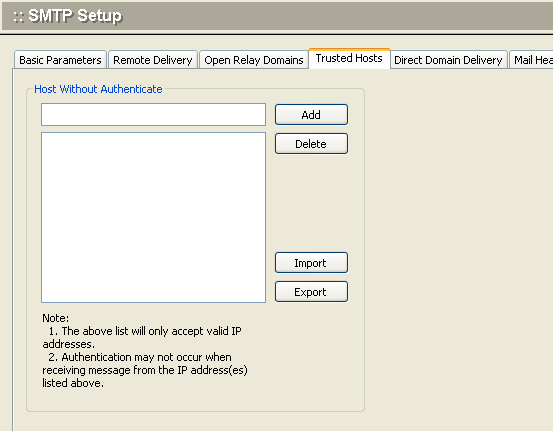
.To add an IP address to the list of trusted IP addresses, enter the IP address in the text box and click the Add button.
.To remove an IP address from this list, select the IP address and click the Delete button.
.To apply your changes, click the Apply button.
.To cancel current settings and return the screen to its state after the last "Apply" operation, click the Reset button.
Domain Directly Delivery
Winmail Server allows you to deliver mail directly to a specific host by specifying a domain name and IP address. One domain name can correspond to several hosts, arranged in sequence depending on network status.
Several email systems can exist in the same network and each system can have a different domain name, but they cannot share DNS settings.
The Direct Domain Delivery option under SMTP Setup allows the administrator to specify direct delivery domains and their priority.
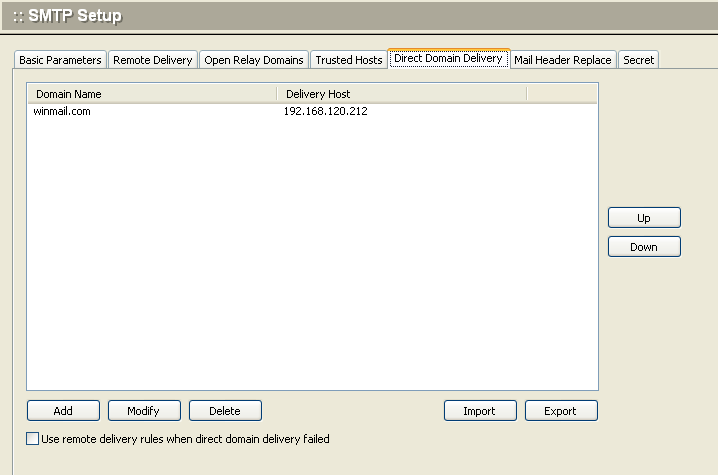
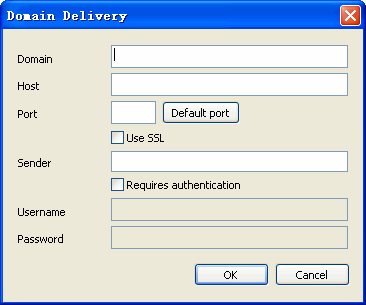
.To add a domain hostname, enter the domain name and the host IP address in the text boxes, and click the Add button. When the remote requires authentication, you must check "Requires authentication" and input the username, password.
.To remove a domain from this list, select the domain name from the box listing all direct delivery domains, and click the Delete button. You can use the Up and Down buttons to scroll through the list.
.To apply your changes, click the Apply button.
.To cancel current settings and return the screen to its state after the last "Apply" operation, click the Reset button.
Use remote delivery rules when direct domain delivery fails: Check this box to have the SMTP service use the remote delivery rules.
Mail Header Replace
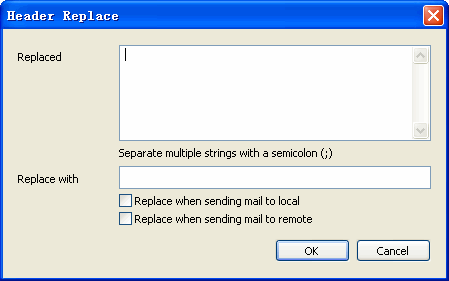
You can replace the displayed mail header on outgoing messages. For example, if you wish to use a corporate alias to represent multiple internal addresses, create the alias and determine the circumstances under which it should be used.
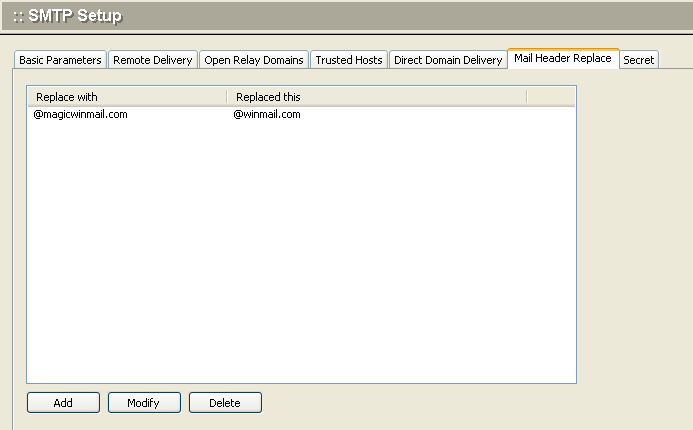
Adding an Alias
1. To add an alias, enter the alias name in the "Replace with" text box.
2. Enter the complete email addresses to be replaced by this alias in the "Replaced string" text box.
3. For multiple entries, separate each one with a semi-colon.
4. Check the correct box to use this alias when sending mail to local addresses, or when sending mail to remote addresses (or both).
5. Click the Add button; the new entry will be shown in the top window.
6. Click the Apply button to apply all changes made.
Removing an Alias
1. To remove an alias, select the line in the top window that you want to delete.
2. Click the Delete button.
3. The entry will be removed from the list. "Mail Header Replace" will take no action.
4. Manually erase or modify the entry in the Detail section.
5. Click the Apply button to apply all changes made.
6. To cancel current settings and return the screen to its state after the last "Apply" operation, click the Reset button.
Note:
.If your mail server is used on the Internet, be sure to activate SMTP Authentication.
Otherwise, your mail server will become a spam relay server. Review settings on the Basic Parameters and SMTP Filter tabs to require authentication and/or restrict communication. Close open relays, require authentication and DNS lookup, and validate SMTP communication in the SMTP Setup screens.
.If the sending host is included in the Trusted Host list, the Direct Domain Delivery list, is a domain affiliated with the recipient's address in the local domain or domain alias, authentication is not needed.
.If your mail server has been used to send spam, analyze the SMTP logs under System Logs to find suspect host IP addresses, and add them to the SMTP Parameters Access Control list under Services.