Webmail Setup
When you select Webmail Setup from the Advanced Setting screen, the following screen will appear, showing settings that can be set for the webmail.
Index Page
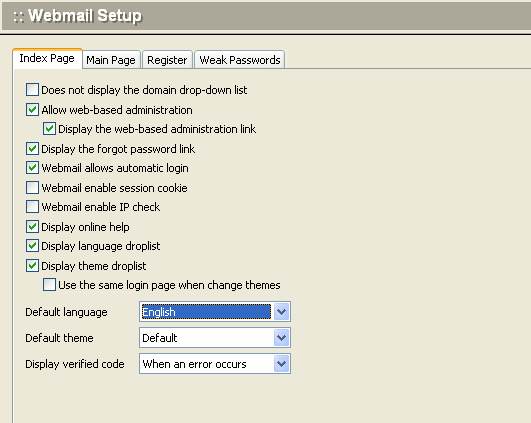
Use the following table for reference when completing this dialog box.
| Display a domain textbox instead of a domain dropdown list | Check this box to prevent the domain list from being displayed in the login box. |
| Allow web-based server administration | Check this box to enable Winmail server administration via the web. |
| Display the web-based administration link | Check this box to allow the web administration link to appear as a link on the Webmail login page. |
| Display the getting password link | Check this box to allow the getting password link to appear as a link on the Webmail login page. |
| Webmail allows automatically login | Check this box to allow user automatically login when access webmail. |
| Webmail session cookie | Check this box to allow the session cookie when login webmail. |
| Webmail IP check | Check this box to allow the checking the client IP when logined. |
| Language | Set whether to allow the language selection and default language. |
| Theme | Set whether to allow the theme selection and default language. |
| Password error | Enter the amount of retries when password error and prohibition time. |
Main Page
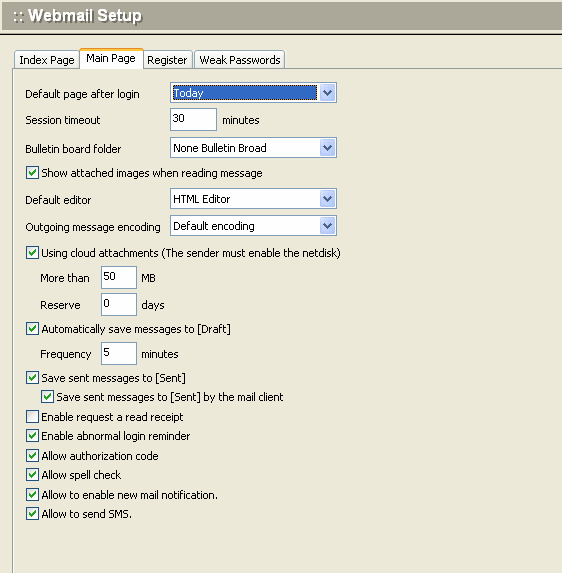
Use the following table for reference when completing this dialog box.
| Default page after login | Set the first page displayed after login |
| Session timeout | Set the wait time for Webmail not to operate after logging in. |
| Bulletin board folder | Setup the bulletin board folder. You must setup the mailbox at Public Mailbox |
| Show attached images when reading message | When reading a message, the attachment is an image file that is displayed directly after the message content. |
| Default editor | Set the default editor when compose message |
| Cloud attachments | Mail user must have network disk permissions. When the email is sent more than the limited size, it will be automatically sent using the shared link. |
| Autosave | Enter the time interval between automatic saving of new mail messages being created. The saved copies will be save to [Draft]. |
| Save sent message to [Sent] | Check this box to allow to saving the sent messages to [Sent] |
| Request a read receipt | Check this box to enabled read receipt feature |
| Spell check | Check this box to allow spell check function. |
Register
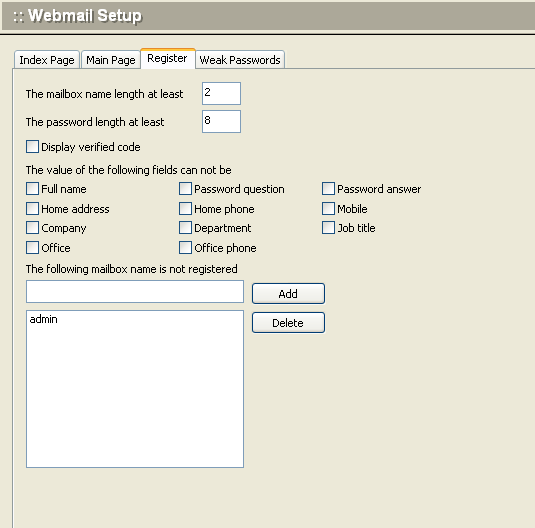
Use the following table for reference when completing this dialog box.
| Mailbox length | Set the minimum length of mailbox user name. |
| Password length | Set the minimum length of password. |
| Password strength | Set the minimum strength of password. |
| Verified code | Check this box to display verified code . |
| Required field | Check this box to enable this field is required |
Weak Passwords
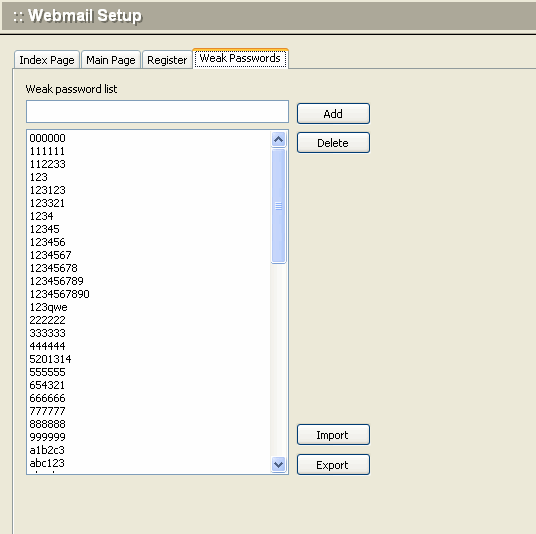
Manage the weak passwords's dictionary
Two-factor Authentication
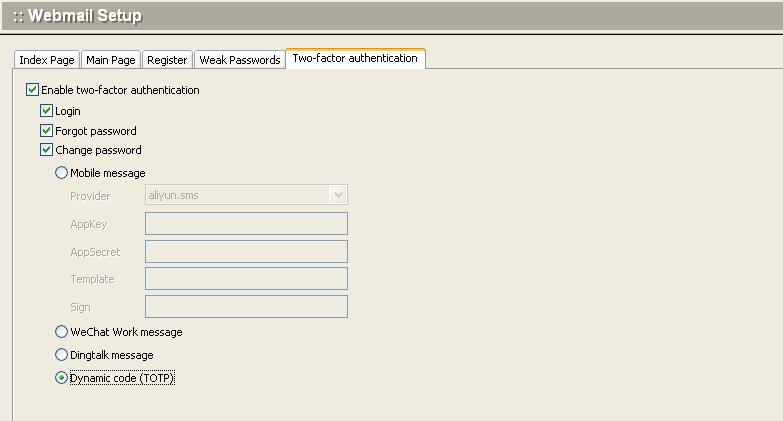
Set whether to enable two-step verification, and the scenarios and methods that require two-step verification