Administrators
The Administrator option allows you to set up and manage access for all administrators of the system. Two types of administrators are allowed:
Super administrator manages all system settings.
Domain administrator manages only his or her authorized domains and groups of domains, users, and mailbox aliases.
Select the Administrator option under System Setup to add or change administrators. The following screen will appear.
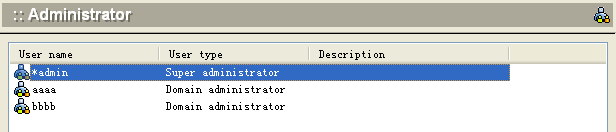
To add an administrator, click the Add button at the bottom of the screen. The following dialog box will appear.
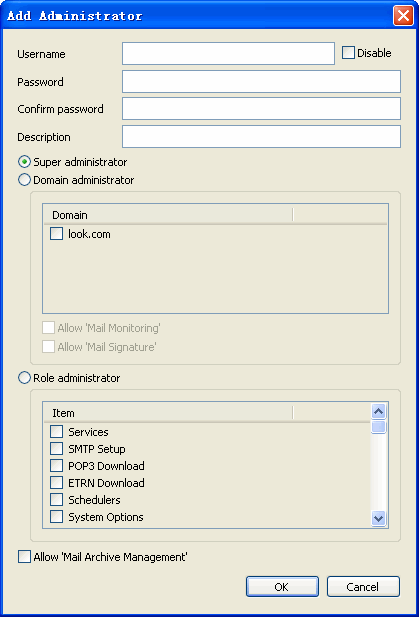
Use the following table for reference while completing this dialog box.
| User name | Administrator login name. |
| Password | Administrator login password. |
| Description | User-defined description to identify the administrator. |
| Administrator type | Select the radio button for the type of administrator being added: (1) Super administrator (2) Domain administrator (3) Role administrator If you are adding a domain administrator, select the domains that will be managed by this administrator from the list of all domains on the left, and use the arrow buttons to include the appropriate domain in the right-hand list. |
To change administrator information, select the administrator from the main list and click the Modify button.To remove an administrator, select the administrator from the main list and click the Delete button.
Click the OK button to accept the setup for each administrator.
- Click OK to accept the administrator.
- To modify an existing administrator, select the administrator from the Administrator screen and click the Modify button.
- To delete an existing administrator, select the administrator from the Administrator screen and click the Delete button.
- Use the Refresh button to update the database and refresh the screen.