Mail Signature
The Mail Signing option allows the administrator to specify whether a user's email must be signed by a manager before sending. Select the Mail Signing option under Advanced Settings. The following screen will appear.
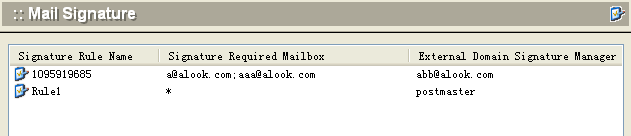
To add mail signing rules for one or more mailboxes, click the Add button at the bottom of the screen. The following dialog box will appear.
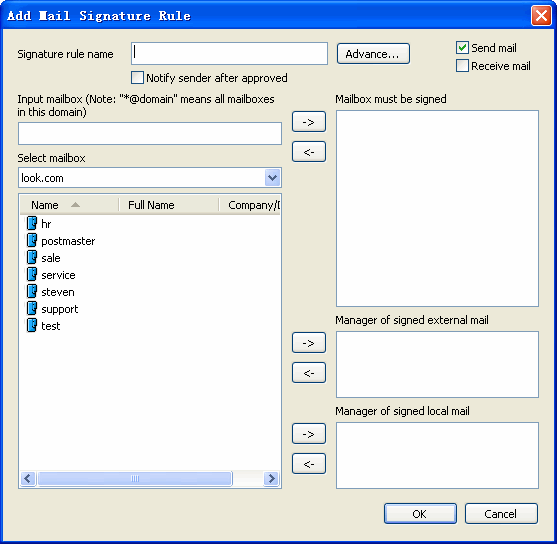
Use the following table for reference while completing the dialog box.
| Signature rule name | User-defined name to identify this set of mail signature parameters. |
| Input mailbox | Text box for typing in the mailbox address. To require signatures on all mailboxes in a domain, enter *@domain |
| Select mailbox | List of all mailboxes known to Winmail Server. To select a mailbox, highlight it and click the Add -> button pointing to one of the following three boxes. |
| Signature required mailbox | This box lists all mailboxes whose mail requires administrator signature before it can be sent. You can either type in a mailbox address or choose from the list of mailboxes shown, then click the Add -> button pointing to "Monitored mailbox." |
| External domain signature manager | This box lists the mailboxes of administrators who are required to sign all mail being sent to external domains. |
| Local domain signature manager | This box lists the mailboxes of administrators who are required to sign all mail being sent to a local domain. |
.Click OK to accept the Mail Signing settings.
.To modify an existing set of mail signature parameters, select the Signature rule name from the Mail Signing screen and click the Modify button.
.To delete an existing set of mail signature parameters, select the Signature rule name from the Mail Signing screen and click the Delete button.
.Use the Refresh button to update the database and refresh the screen.