Public Mail Folders
Mailboxes in the Winmail Server system can be designated as private, requiring user validation before accessing information, or public, accessible by any user from any location on the network. The IMAP Public Mailbox option allows users to access the same public mail folder, stored on the IMAP server, to be able to share mail among users.
Select the IMAP Public Mailbox option from the System Setup menu. The following screen will appear.
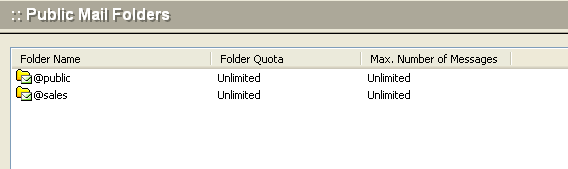
To add a mailbox to the list of IMAP public mailboxes, click the Add button at the bottom of the screen. The following dialog box will appear.
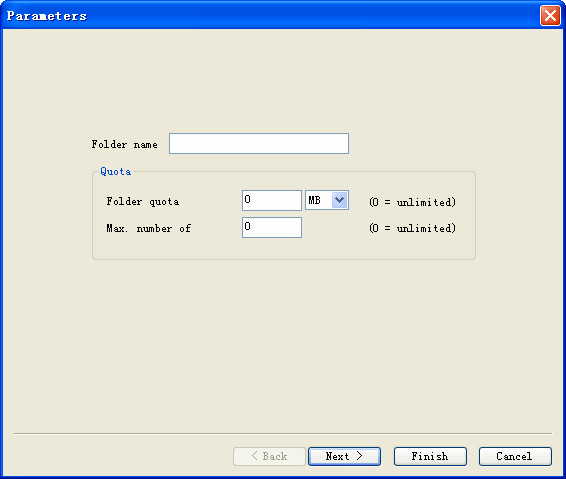
Use the following table for reference while completing this dialog box.
| Public mailbox name | The mailbox name identified in the IMAP client software. Winmail Server automatically adds the prefix @ to indicate that it is not a user mailbox. |
| Mailbox quota | Maximum storage capacity of the public mailbox. |
| Max. number of messages | Maximum number of email messages that can be received and stored in the public mailbox. |
Click the Next button when finished. A second dialog box will appear.
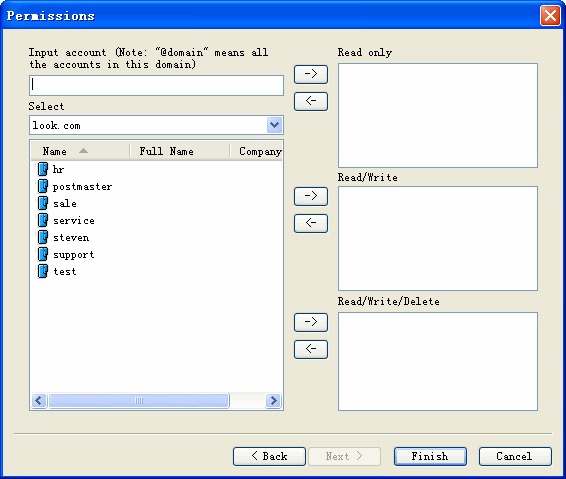
Use the following table for reference while completing this dialog box.
| Input account | Text box for typing in the mailbox address or addresses that have access to the IMAP Public Folder. To allow access by all mailboxes in a domain, enter @domain |
| Select account | List of all mailboxes known to Winmail Server. To select a mailbox, highlight it and click the Add -> button pointing to one of the following three boxes. |
| Read only | This box lists all mailboxes whose users have read-only permission when accessing files in the IMAP Public Folder. You can either type in a mailbox address or choose from the list of mailboxes shown, then click the Add -> button pointing to "Read only." |
| Read/write | This box lists all mailboxes whose users have both read and write permission when accessing files in the IMAP Public Folder. You can either type in a mailbox address or choose from the list of mailboxes shown, then click the Add -> button pointing to "Read/write." |
| Read/Write/Delete | This box lists all mailboxes whose users have permission to read, write, or delete files when accessing files in the IMAP Public Folder. You can either type in a mailbox address or choose from the list of mailboxes shown, then click the Add -> button pointing to "Read/Write/Delete." |
.Click the Finish button when you have set up all the parameters and permissions for the IMAP Public Folder.
.To change parameters or permissions for a public folder, select the folder name from the list in the IMAP Public Folder screen, and click the Modify button. The screens for parameters and permissions will be shown as two tabs. Select each tab and edit the information needed.
Note: Once you have set up the name of the public mailbox, you cannot change that name.
.To delete a public folder, select the folder name from the list in the IMAP Public Folder screen, and click the Delete button.
Note: All mail currently held in the public folder will be deleted when you delete the public folder.