Mail Filter
The administrator can set up filters to apply to email during delivery. Select the Mail Filter option from the Winmail Server main menu. The following screen will appear.
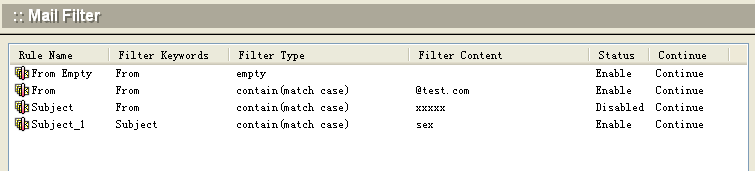
To create a new mail filter, click the Add button at the bottom of the screen. The following dialog box will appear.
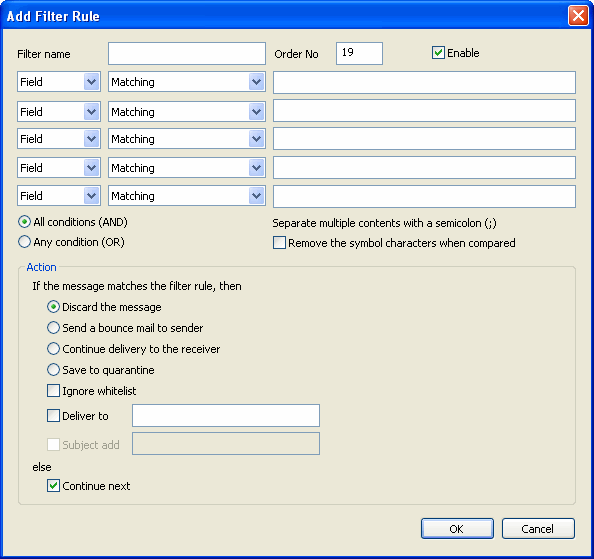
Use the following table for reference when creating mail filtering rules. Click OK to accept each filter and continue.
| Filter name | Each filter name must be unique. |
| Keyword | Choose a filtered field keyword from the pull-down menu. Options include From, To, CC, Subject, Received, Mail Header, and Body. Received is a field tagged by mail servers as the message passes through. |
| Matching | Choose the filtering criteria from the pull-down menu. Options include: (1) empty:field contains no data (2) missing:field is missing (3) contain (match case):field contains the specified string (case-sensitive) (4) contain (not match case):field contains the specified string (not case-sensitive) (5) not contain (match case):field does not contain the specified string (case-sensitive) (6) not contain (not match case):field does not contain the specified string (not case-sensitive) (7) equal (match case):field content is identical to the specified string (case-sensitive) (8) equal (not match case):field content is identical to the specified string (not case-sensitive) (9) not equal (match case):field content is not identical to the specified string (case-sensitive) (10) not equal (not match case:field content is not identical to the specified string (not case-sensitive) |
| Filter content | Enter the content string you want to filter for. You can use wild cards as placeholders. For example, to filter the string test (sex) test, you can input the expression *{*}*. |
| Enable | Check this box to begin using this filter. |
| Action |
Select the action to be taken when an email keyword matches the criteria and content specified. .Discard the message .Send a bounce mail to sender .Still deliver to the receiver .Save to quarantine .Deliver to: .Else continue next |
.To modify a filter, select it from the list of mail filters and click the Modify button. Edit the desired information and click OK to accept the changes and proceed.
.To delete a filter, select it from the list of mail filters and click the Delete button.
.To update the database and refresh the user interface, click the Refresh button.
Note: If you intend to use mail monitoring in addition to mail filtering, the filtered email must be set up as Still deliver to the receiver.