Installation and Initialization
Preparation
Make sure your server is connected to the Internet and that Domain Name System (DNS) directory service is available.
If you do not have the Winmail Server installation package, download the latest version from https://www.winmail.cn.
You must own a valid domain name (e.g. ourcompany.com) and have the capability to convert MX records to the IP address of your mail server.
Installation Procedure
To correctly install Winmail Server, run the setup program for your operating system platform (such as Windows 2016).
Double-click the winmail.exe file to run the installation wizard.
Follow prompts in the installation wizard to install the mail server step by step.
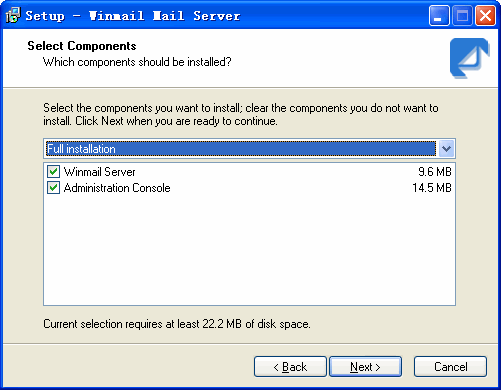
Select Components
The first screen of the installation wizard asks you to select the components to be installed. Winmail Server software consists of the server application core and the administration console tool, which supports remote access and can be installed on another computer for administrator convenience. Default selection is both of these components. If you are installing only the administrative tool on a server, uncheck the Winmail Server option.
Click Next to proceed.
Select Additional Tasks
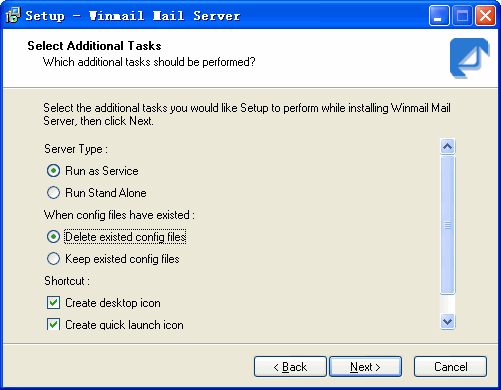
The next setup screen asks you to choose how you want the server to run, what to do with existing files if you are upgrading, and how you want to handle desktop shortcuts.
Server Type
The Winmail server application core can be run in two ways. The main difference between these two server modes is the manner in which Winmail Server is initiated.
When Winmail Server is run as a service, the application automatically launches upon computer startup, without a separate system login. When selecting Winmail Server to run as a stand-alone application, you will be required to first login to the system before Winmail Server can launch.
Handling Existing Configuration Files
If you are upgrading from a previous version of Winmail Server, check the box to indicate whether you want to keep the current configuration information or to delete current configuration files and start fresh.
Creating Shortcuts
You can choose to have the installation create a desktop icon for Winmail Server, and/or create a quick launch icon in the system tray.
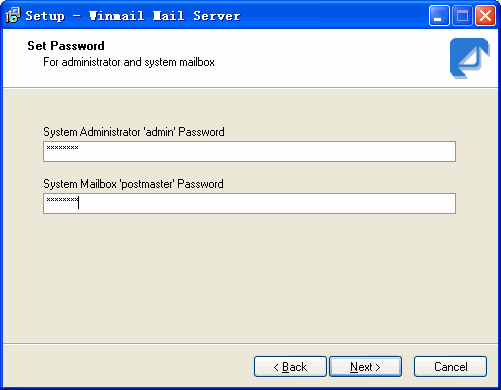
Set Passwords
If the system detects that this is a first time installation, or if you have chosen not to keep configuration files, the setup program will ask you to enter an administrator login password and postmaster mailbox password. These are required fields. Default administrator name is admin.
Completing Installation
After finishing the installation of Winmail Server on a Windows 95/98/ME platform, you must restart the system before using Winmail Server for the first time. Under other operating systems, the system does not need to be restarted.
After installation (and reboot, if required), you can begin using Winmail Server.
If you have chosen a quick launch icon, one of the following Winmail Server icons will appear in the system tray.
 indicates Winmail Server is successfully running.
 indicates a failure in installing and initializing Winmail Server.
If you are having problems completing the installation of Winmail Server successfully, check for the following conditions:
1.Administrative port 6000 is in use. Please refer to the FAQ: Why has the SMTP/POP3/ADMIN/HTTP/IMAP/LDAP service failed?
2. The same edition of this software has already been installed and its trial period has expired.
3. The license information is incorrect, i.e., number of users exceeds license permission.
Initialization
After installation, the administrator must initialize the Winmail Server system. Since no domain settings will be detected yet, Winmail Server will automatically run the Initialize Wizard Tool.
You can also choose to set up Winmail Server with the administration tool.
*** Initialization using the Initialize Wizard Tool
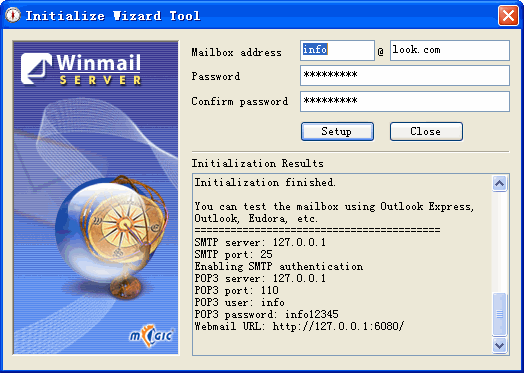
Every domain requires a valid postmaster mailbox. Enter the postmaster address and password (the same one entered during install action). The wizard will automaticaly check the database to confirm that this address exists. If the mailbox does not exist, the Initialize Wizard Tool ll add the new domain name and mailbox entry into the database and test availability of SMTP/POP3/ADMIN/HTTP service.
Click the Setup button to complete the initialization.
The system generates and displays a report of server initialization and testing in the window titled "Initialize Result" just below the Setup button.
Scroll down to the end of the report to view the setup information for your configuration.
*** Initialization using the Administration Console
The Administration Console allows you to manage your mail server locally or remotely through an online Web management site. To initialize the system using the Administration Console tool, follow these steps. See the Administration Console section of this manual for more details.
1.Login Administration Console and Check System Services
a.Run Winmail Server Administration Console or double click the icon.
b.Input admin user name and password (set during installation) to login.
c.Choose Services from the System Setup menu.
d.Check the list to make sure that SMTP, POP3, and ADMIN services are all running.
Notes:
If you find that SMTP or POP3 is not running, check system logs in the System Logs->System option. Often a service cannot be started because the intended port is in use. Close related programs in use or change to another port, and then restart the relevant service. (For example, in Windows 2003, under the default installation, SMTP service of IIS will be installed, which may cause mail server SMTP service to be unavailable.)
2.Mail Domain Setup
Set up a domain for mail server, e.g. ourcompany.com. Please refer to Domains
3.Add New User
Please refer to Users
Mail receiving and sending test
You can test the system using email client software such as Outlook or Eudora, or using webmail. For Webmail access, log on to http://localhost:6080 or http://yourserverip:6080
Login as one of the users you just added, and send a test email to another of the users you just added.
If you encounter problems, see the FAQ appendix for the description of your problem and possible solutions.