Administration Console Tool
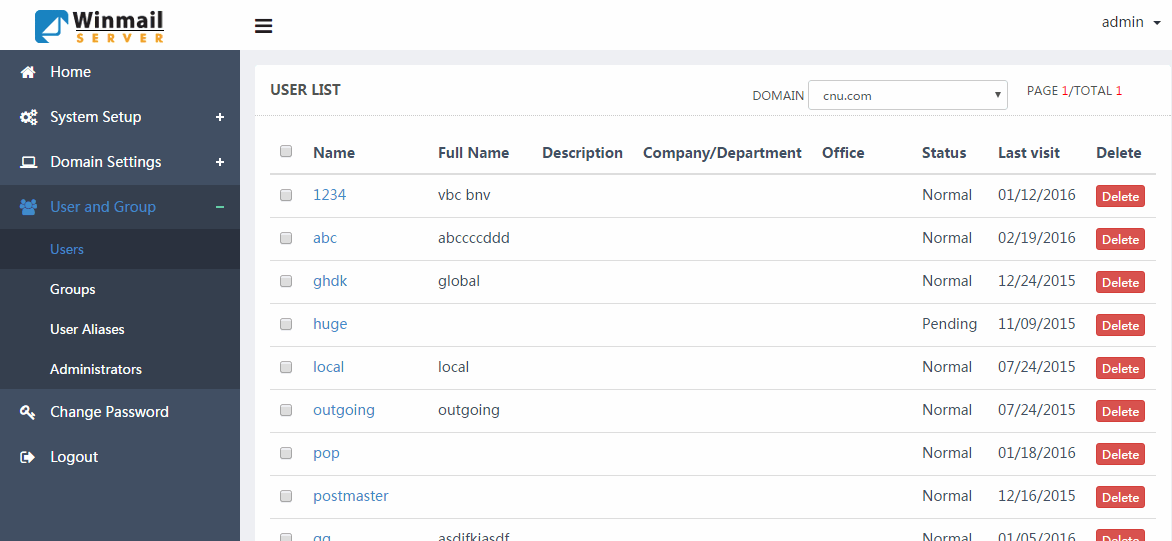
You can manage your mail server with the Administration Console Tool or through the online Web Manager site. The Administration Console Tool supports all server settings and remote access, while the Web Manager site supports only account and domain names management.
This chapter explains how to use the Administration Console Tool.
Start
Select Start Menu->Programs->Winmail->Winmail Administration Console to start, or select the shortcut icon on your desktop or quick launch bar to start the program. The following screen will appear.
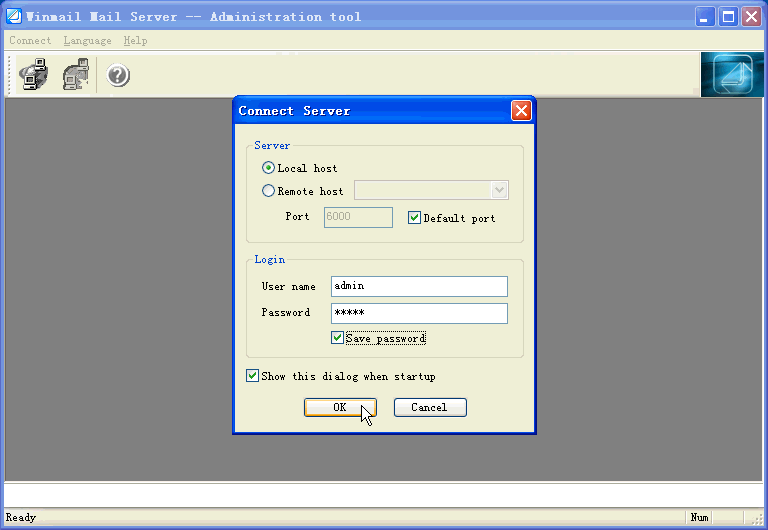
Note: If this login window does not appear, click the Connect option on the menu bar.
Usage
1.Choose the type of mail server you wish to manage.
To manage a local mail server, select Local host.
To manage a remote mail server, select Remote host and input the host name or IP address and port number.
2.Enter the administrator user name and password.
3.To display this login window automatically when starting up, click the checkbox.
4.Click OK to login. The Winmail Server Administration Console Tool will display a screen similar to the following.
If you see the message Server has not responded, either the mail server or the administration service is not started.
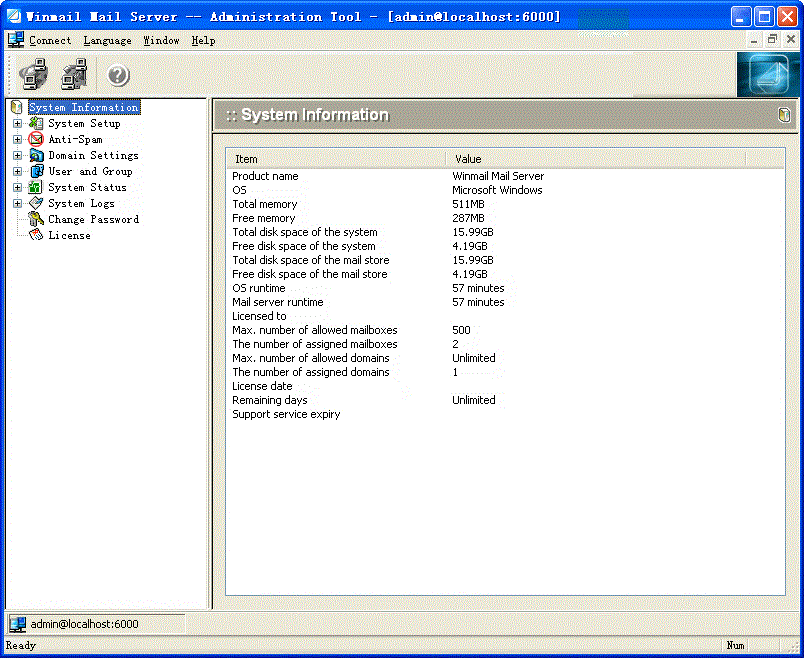
Administration Console Tool Screens
The left pane displays all of the functions available with Winmail Server. As you select an item in the left pane, the right pane displays the detail and setup options for that item. Buttons at the bottom of the screen provide options for each function.
Note: The version number of the Administration Console Tool should be the same as the mail server, and cannot be a lower version. Select "check latest version" on the Help menu to compare the version you are running with the current version.
The top level menu options in the Winmail Server Administration Tool menu are:
.System Information
.System Setup
.Domain Setting
.User and Group
.System Status
.System Logs
.Help
Each of these top-level menu options and the functions under them is described in this manual.
Why Can't I Connect?
If a "Connection failed" warning is displayed after you try to connect, it could be due to one of the following: Incorrect user name or password. Make sure that these are correct and bear in mind that the password is case sensitive. Make sure the Caps Lock key is not on. The Mail Server Engine is not running on the computer to which you are trying to connect. Run it first (using the Mail Server Control utility or the Services panel under Windows XP/2003).
Web Admin
The URL of web based administration http://localhost:6080/admin/
or http://yourserverip:6080/admin/
Please enter the administrator username and password, Support domain administrator.