Domains
Double-click on Domains to add, modify, or delete a domain. The following screen will appear.
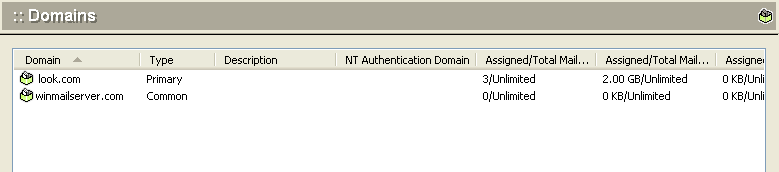
To add a domain, click the Add button at the bottom of the screen. The following dialog box will appear.
Basic Parameters
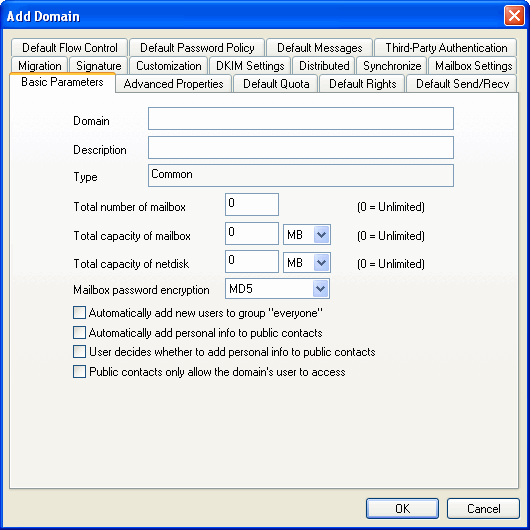
Use the following table for reference while completing this dialog box.
| Domain name | Local domain name. |
| Description | User-defined description of local domain. |
| Type | Enter either primary or common domain. Mailbox addresses in the primary domain require only the username when configuring POP3 settings in Outlook or OE. In common domains, the complete address is required. |
| Total storage of mailboxes | Total storage capacity of all mailboxes. |
| Total number of mailboxes | Total number of mailboxes supported on the domain. |
| Minimum quota per mailbox | Minimum storage quota of each mailbox. |
| Total storage of netstore | Total storage capacity of all mailbox's network storage. |
| Mailbox password encryption | The password encryption for new mailbox |
| Automatically add new users to group "everyone" in this domain | Check this box to have the Winmail Server automatically add new users to the "everyone" group. |
| Automatically add personal info to public contacts in this domain | Check this box to have Winmail Server automatically add personal information to the public address book. |
| User decides whether to add personal info to public contacts | Check this box to allow the user to choose whether or not to add personal information to the public address book. |
| User decides whether to add personal info to public contacts | Check this box to notify each user to decide whether or not to add personal info to public address book. |
| Public contacts only allow the domain's user to access | Check this box to notify only allow the domain's user to access public contacts. |
Advanced Properties
Select the Properties tab in the Add Domain dialog box to establish default settings for the domain.
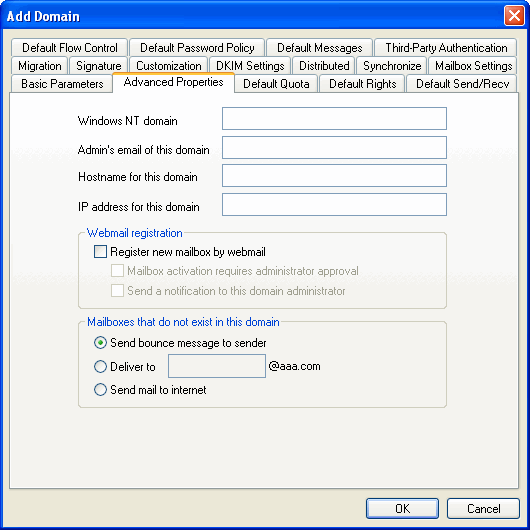
Use the following table for reference while completing this dialog box.
| NT authentication domain | If you are using the NT operating system, you can enter the NT login domain to use your login username and password for email authentication. |
| Domain administrator mail | Local domain administrator email address. |
| Mailbox not in the domain | When an intended email address is not in the local domain, specify how to handle it using one of the following options. |
| Direct login URL | URL for directly logging on to the local domain. |
| Direct login IP | IP for directly logging on to the local domain. |
| Register mailbox by webmail | Allow registration of new accounts through webmail. |
| Mailbox activation requires administrator approval | Activation of new account must be approved by administrator. |
| Send new account notification to the domain administrator | Domain administrator will be alerted by email when a new account is registered. |
| Send bounced mail message | When email address is not in the local domain, the administrator will receive a bounced email message |
| Deliver to | Deliver to When email address is not in the local domain, deliver the message to a specified mailbox address in the current domain. |
| Send mail to Internet | When email address is not in the local domain, deliver the message to a specified Internet address. |
Default Mailbox Qutoa
Select the Extended Properties tab in the Add Domain dialog box to establish settings for POP3 mail retrieval and other advanced settings.
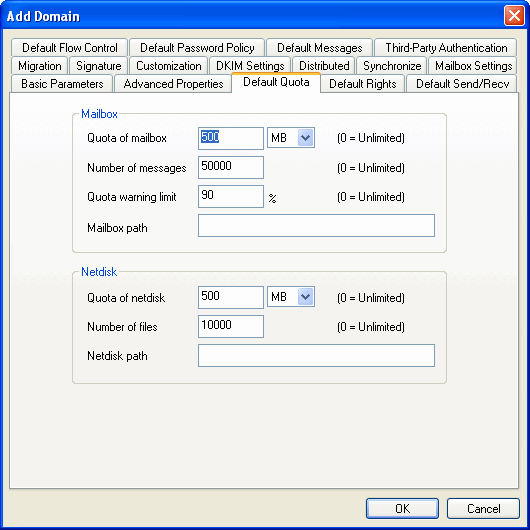
Use the following table for reference while completing this dialog box.
| Quota of mailbox | Default quota of maibox for new mailbox under the domain. |
| Number of messages | Default number of messages for new mailbox under the domain |
| Warning limit | Default quota warning for new mailbox under the domain |
| Mailbox path | Default mailbox storage path for new mailbox under the domain |
| Quota of network disk | Default quota of network disk for new mailbox under the domain. |
| Number of files | Default number of files for new mailbox under the domain. |
| Network disk path | Default network disk storage path for new mailbox under the domain |
Default Mailbox Right
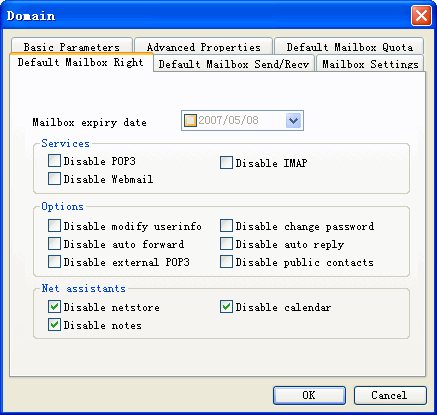
| Expiry date | The expiry date when adding new mailbox in the domain. |
| Disable POP3 | Disabled/Enable POP3 when adding new mailbox in the domain. |
| Disable IMAP | Disabled/Enable IMAP when adding new mailbox in the domain. |
| Disable webmail | Disabled/Enable webmai when adding new mailbox in the domain. |
| Disable modify userinfo | Disabled/Enable modiy user infomation when adding new mailbox in the domain. |
| Disable change password | Disabled/Enable chang password when adding new mailbox in the domain. |
| Disable auto forward | Disabled/Enable auto forward when adding new mailbox in the domain. |
| Disable auto reply | Disabled/Enable auto replywhen adding new mailbox in the domain. |
| Disable external POP3 | Disabled/Enable external POP3 when adding new mailbox in the domain. |
| Disable public contacts | Disabled/Enable access public contacts when adding new mailbox in the domain. |
| Disable netstore | Disabled/Enable netstore when adding new mailbox in the domain. |
| Disable calendar | Disabled/Enable calendar when adding new mailbox in the domain. |
| Disable notebook | Disabled/Enable notebook when adding new mailbox in the domain. |
Default Mailbox Send/Recv
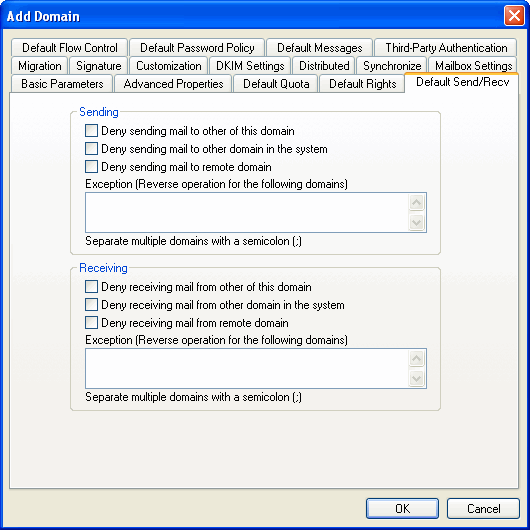
| Sending | Set the following options: "Deny sending mail to other of this domain", "Deny sending mail to other domain in the system", "Deny sending mail to remote domain " |
| Receiving | Set the following options: "Deny receiving mail from other of this domain", "Deny receiving mail from other domain in the system", "Deny receiving mail from remote domain" |
Default Flow Control
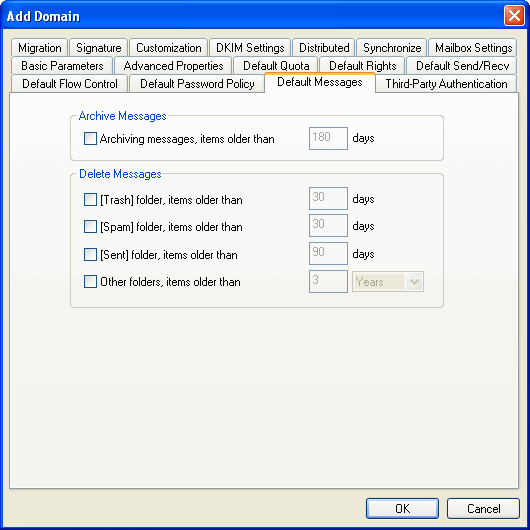
| Sending Limited | Setting the maxinum bytes of messages and number of recipients an hour |
| Local delivery limited | Setting limitions of send message to local users or local groups |
| Remote delivery limited | Setting limitions of send message to remote users |
Mailbox Settings
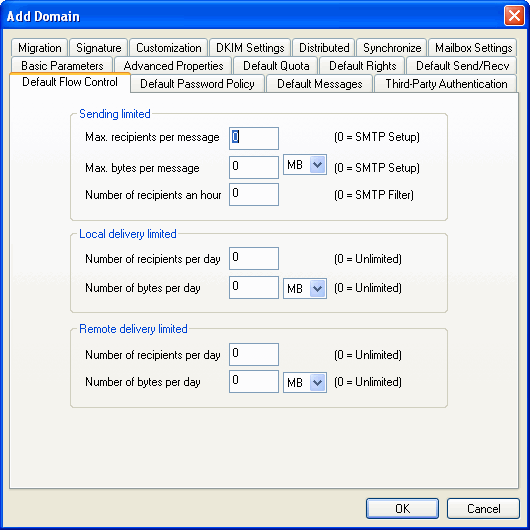
| Max. signatures | Maximum number of signatures allowed. |
| Max. personal contacts | Maximum number of personal contacts allowed. |
| Max. external POP3 accounts | Maximum number of external POP3 accounts allowed. |
| Max. number of POP3 messages | Maximum number of mail messages that can be received by each POP3 account. |
| Max. POP3 message size | Maximum size of each mail message received via POP3. |
| Max. mail filter rules | Maximum number of mail filters that can be applied |
Signature
| Content | Under the domain user to send a e-mail message, attached to the content as signature. When HTML signatures, the content directly into HTML code, select the "HTML format" |
.Click OK to accept the domain settings.
- To modify an existing domain setting, select the domain from the Domains screen and click the Modify button.
- TTo delete an existing domain setting, select the domain from the Domains screen and click the Delete button.
- TUse the Refresh button to update the database and refresh the screen.
Notes:
.For primary domain users, you only need to input username when configuring settings of POP3 account in Outlook. Common domain users must input complete email address.
.The primary domain cannot be deleted but can be renamed.
.Common domains can be deleted but cannot be renamed.
.All email accounts, user aliases and group records must be deleted before you delete the domain to which the email accounts belong.
If you are not the users of main domain, do not forget to set the POP3 with full address in Eudora, Outlook or other mail client software. For example, the POP3 account must to be set as test@abc.com (Note: abc.com is not the main domain and test is a user name)