System Options
When you select System Options from the Advanced Setting screen, the following screen will appear, showing the various functions and parameters that can be set for the mail system.
Basic Parameters
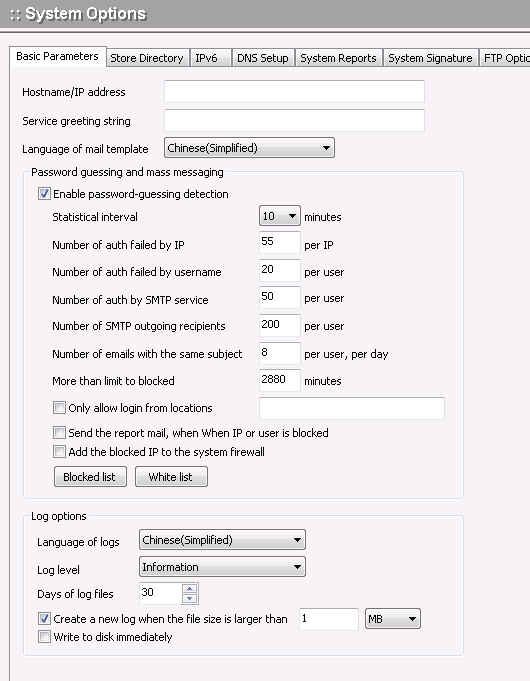
The first tab contains fields for specifying basic parameters that apply throughout the Winmail Server application.
Use the following table for reference when filling out the fields on the Basic Parameters screen.
| Service banner | User-defined name that can be used as a network flag for each service (SMTP/POP3/IMAP). Sometimes changing this flag can effectively prevent system attacks. If left blank, the service banner will display Winmail Server. |
| Number of auth failed by IP | The maximum number of times is authentication failed by the same IP address , can effectively prevent an IP to guess the password |
| Number of auth failed by username | The maximum number of times is authentication failed by a mail user, can effectively prevent guessing the password of a mail user |
| Number of auth by SMTP service | The maximum number of times is authentication by the same IP address or mail user, can effectively prevent an IP address or a mail user is forwarding spam. |
| Number of outgoing recipients | The maximum number of times is outgoing recipients by the same IP address or mail user, can effectively prevent an IP address or a mail user is forwarding spam. |
| History log files | Number of log files to be kept. |
| Create a new log file when the file size exceeds | Check this box and enter a maximum size for each log file. |
Note: Directories for mail storage, mail queue, and mail backup should be different. If you make a change to a mail path, be sure to copy the current target directory structure into the new target directory.
Directory
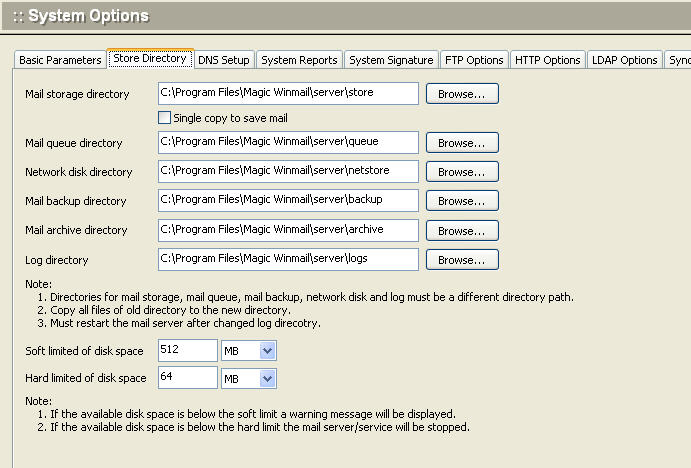
The screen for specifying directory of Winmail Server application.
| Mail store path | Directory in which user mail will be stored. |
| Mail queue path | Directory in which mail queues will be stored. |
| Mail backup path | Directory in which mail backup will be stored. |
| Network store path | Directory in which network file will be stored. |
| Log file's path | Directory in which log file will be stored. |
| Disk space soft limit | If the available disk space below the soft limit, a warnning message is displapyed. |
| Disk space hard limit | If the available disk space below the hard limit, mail server is stoped. |
DNS Setup ---
In most cases, the DNS server will already be established for your network, and you can simply use the default settings. If you need to set up a DNS server, select this option and the following screen will appear.
Use the following table for reference when completing the fields in this dialog box.
| Use DNS server in Windows TCP/IP setting | Check this option to use the default DNS server in your Windows TCP/IP network environment. |
| Use the following DNS server | Specify the IP addresses of the servers to be used as primary and secondary DNS servers. |
| Lookup MX records from root DNS when DNS lookup fails | Check this box if you want the system to check DNS records on root DNS servers when regular DNS lookup fails. |
System Reports --- 
Use the following table for reference when completing this dialog box.
| Email for reports | Mailbox to which reports of scheduled system actions (clear users and clear mail) will be sent. |
System Signature --- 
Use the following table for reference when completing this dialog box.
| Signature Content | Users send a e-mail message, attached to the content as signature. When HTML signatures to increase the content directly into HTML code, select the "HTML format." |
| Attached signature only webmail sending message | If this option is selected, attached the signature content when sending email by webmail; If this option is not selected, attached the signature content when sending email by mail client (Outlook, Thunderbird, etc.) and Webmail (flaws: Some clients will be displayed as the attachment). |
FTP Options ---
FTP is to provide network disk services. Can also use FTP client tool to connect
Use the following table for reference when completing this dialog box.
| FTP Data Transfers | FTP connection has two mode: PORT (active mode) and PASV (passive mode). When the FTP connection, the use of "PASV mode" for data transmission, the return to the client's IP address and port. General the IP address is the Internet ip address, and the port opening for the Internet. |
| Secure FTP Data Transfers | When Secure FTP connection, the use of "PASV mode" transmission of data, returned to the client's IP address and port. |
HTTP Options ---
HTTP is to provide webmail services.
Use the following table for reference when completing this dialog box.
| PHP by FastCGI | FastCGI provides a way to improve the performance of the thousands of PHP applications. FastCGI runs applications in processes isolated from the core Web server, which provides greater security than APIs. |
| Enable PHP cache | The Zend OPcache provides faster PHP execution through opcode caching and optimization. It improves PHP performance by storing precompiled script bytecode in the shared memory. |
| Max. upload file size | Set the maximum file size to upload by Webmail |
LDAP Options ---
LDAP (Lightweight Directory Access Protocol) is used by email programs to look up contact information on a server. Winmail Server supports LDAP and allows the administrator to restrict access to both creating LDAP entries and searching for them.
Select the LDAP Options tab to display the following screen.
Use the following table for reference when completing this dialog box.
| LDAP Write Password | Enter a password to restrict permission for writing information into LDAP. |
| Allow anonymous access (Read information) | Check this box to allow any client software to search for user information in LDAP without username and password authentication. |